Depth Distribution Results
This guide introduces the Poynting Vector, Absorption Density, and Electric Field results for viewing energy-flow, absorption, and electric-field distributions through the stack. Use them to locate field enhancement, local absorption, and changes in energy flow near interfaces.
Analysis Entry
| Current results page | Method page |
|---|---|
sweep strategy and interpretation for Poynting Vector / Absorption Density / Electric Field | Depth Detector Analysis |
use Layer Absorption to identify which layer absorbs, then examine depth distribution | RTA and Layer Absorption Analysis |
| fallback rules for multi-dimensional sweeps | Overview |
Focus
This chapter covers three points:
- the prerequisites and shared page structure of depth-resolved results
- how to read
Poynting Vector,Absorption Density, andElectric Field - what to do when charts fall back to tables or trigger large-data safeguards
Example Setup: Coherent ITO Baseline
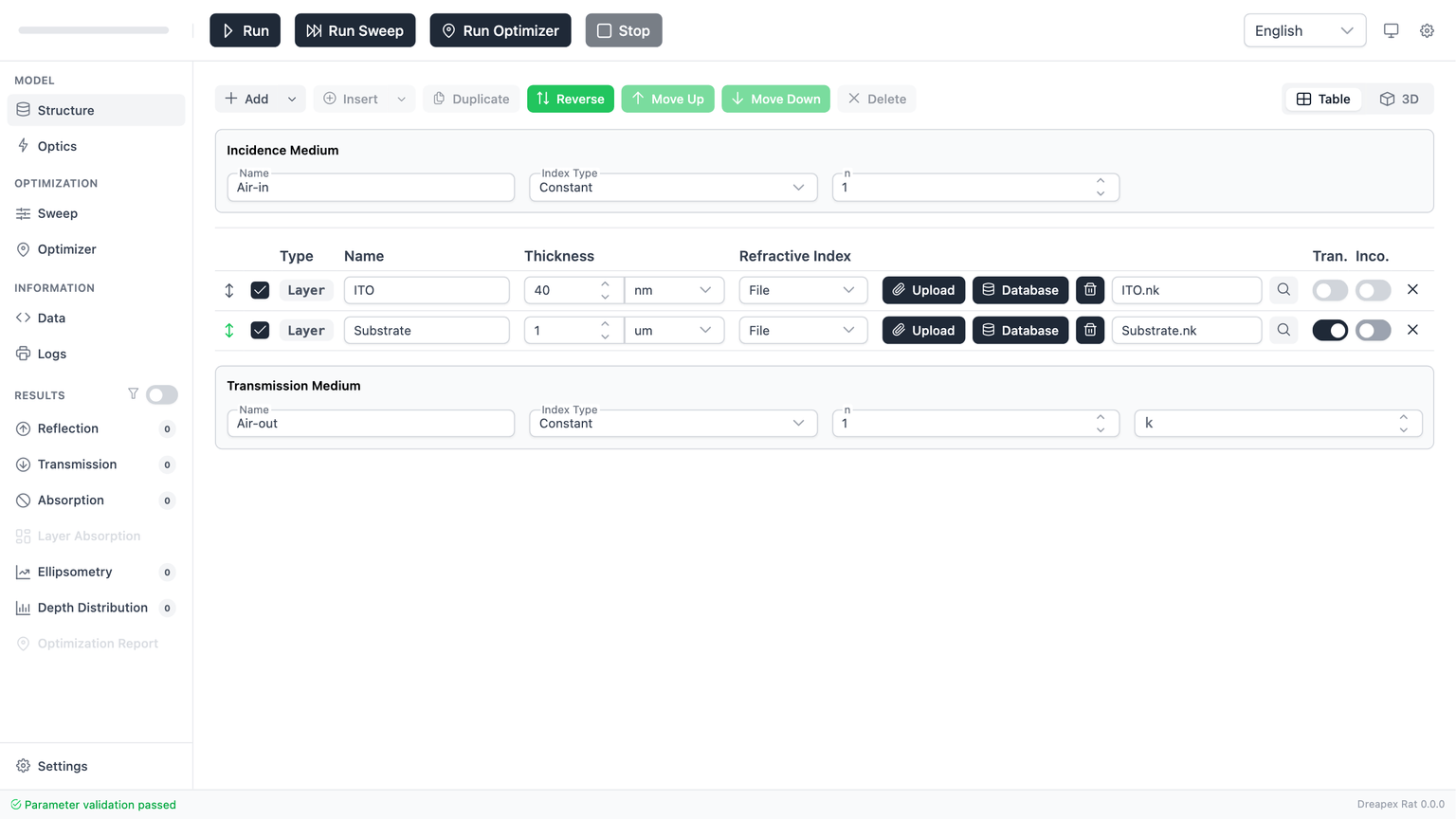
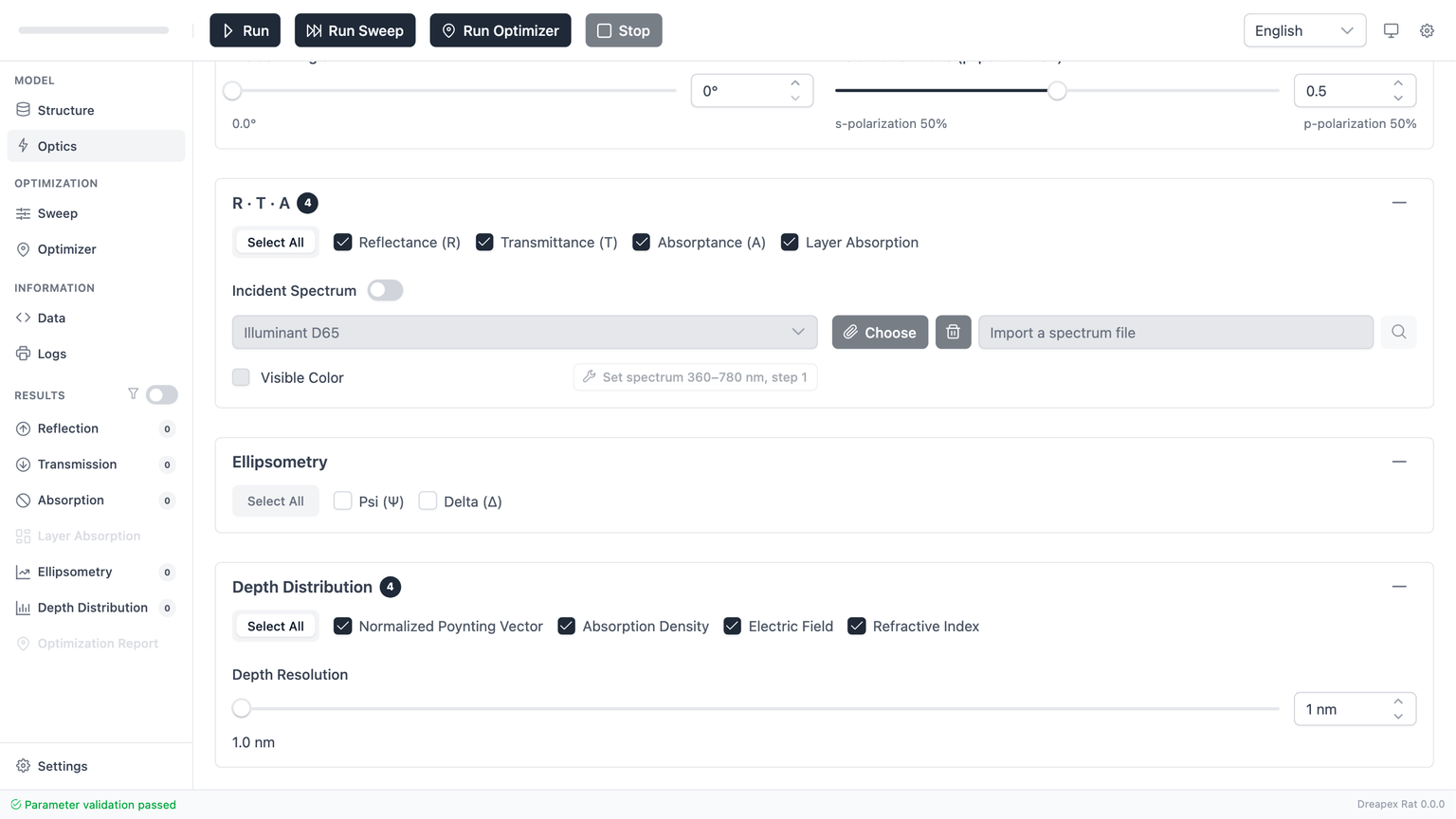
The screenshots in this chapter use the default ITO-on-substrate model with one required change: the substrate is switched from incoherent to coherent so the app can generate depth-resolved fields.
This baseline uses:
- The default
Structure:Air-in -> ITO (40 nm) -> Substrate (1 um) -> Air-out. SubstratewithInco.turned off, so the full stack is coherent.- The default
Optics: wavelength modeSweep,400 -> 900 nm, step5 nm;Incident Angle = 0°;pRatio = 0.5. Depth Distribution > Select All, which currently enables all four depth outputs:Poynting Vector,Absorption Density,Electric Field, andRefractive Index. This chapter focuses on the first three.Depth Resolution = 1 nm, then the top-toolbarRunbutton.
Prerequisites and shared page structure
Depth-distribution pages have explicit availability conditions. The current implementation is gated by:
| Condition | Current rule | Direct consequence when not met |
|---|---|---|
| Detector enabled | The corresponding detector must be checked in Optics > Depth Distribution | The page has no data |
| Fully coherent stack | Every layer in the stack must remain coherent | Poynting / Absorption Density / Electric Field are not generated |
| Depth resolution | resolution >= 0.1 nm and <= 100 nm; in practice it should also stay below the total stack thickness | Validation fails or the result becomes too coarse to interpret |
The three pages share the same page shell:
- Result header: shows the current result type, single-run vs
Sweep, and the chart/table toggle. - Main plot area: shows the depth-resolved plot, or a table when dimensionality becomes too high.
- Right sidebar: chart-type toggles, export actions, data-count stats, and page-specific controls.
- Layer-boundary overlay: marks the depth regions that belong to different layers.
Axes, Color Scale, and View Modes
In heatmap mode:
- the x-axis is
Depth (nm), - the y-axis is
Wavelength (nm), - color represents the selected physical quantity,
- the color bar shows the current displayed minimum and maximum.
In line mode:
- the x-axis is still depth,
- each line corresponds to one wavelength,
- the sidebar lets you select or invert the wavelength set to display.
Use Heatmap for full spatial overview. Use Line for a smaller set of explicit depth profiles at selected wavelengths.
When the App Falls Back to a Table
These pages do not always remain in chart mode. The current implementation has two automatic fallbacks:
- In
Sweepresults, the page switches to a table when the active sweep dimensionality becomes too high (for non-scalar results, this usually starts at two sweep dimensions). - When the table row count, chart point count, or 3D scatter point count exceeds the rendering limits, the app blocks the visualization and recommends CSV export.
The current limits are:
| Limit | Current threshold | Behavior when exceeded |
|---|---|---|
| Total table rows | 500,000 | Table rendering is blocked and a large-data warning is shown |
| Total chart points | 500,000 | Chart rendering is blocked or warned |
scatter3D points | 80,000 | 3D scatter rendering is blocked, export remains available |
bar3D points | 50,000 | 3D bar rendering is blocked (bar geometry is more expensive than scatter) |
| Chart optimization threshold | 100,000 | Animations and smooth curves are disabled for performance |
| Single-request TMM solve count | 50,000 | Backend safety limit to prevent timeout or memory exhaustion |
So a missing plot does not necessarily indicate bad physics. In many cases, it only means the browser-side renderer is protecting itself.
Poynting Vector
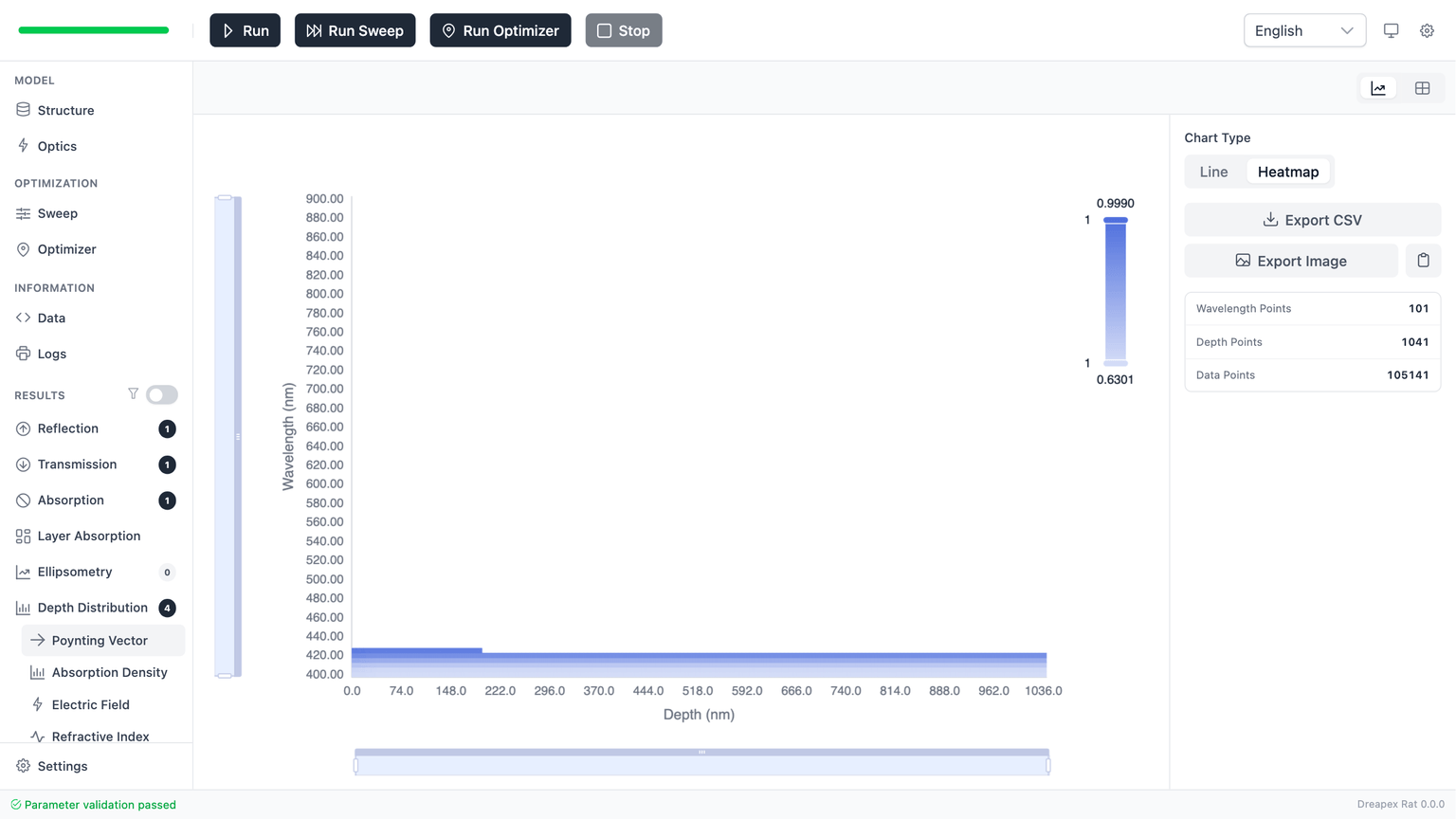
The Poynting Vector page shows the normalized energy flow along the depth direction through the stack.
Check:
- Check whether interfaces introduce visible steps or gradients.
- Check whether strongly absorbing regions coincide with stronger decay.
- Check whether low-loss regions remain smooth and nearly uniform.
In the baseline case used here, the map is mostly smooth. That is consistent with a relatively simple ITO-on-substrate stack. The visible change near the layer boundary reflects index contrast and layer transition rather than a localized severe loss.
Primary use
Use this page to check:
- Is energy moving through the stack smoothly, or is something changing sharply at an interface?
- Did a design change make the stack more “transparent” to power flow or more “blocked” in a specific region?
If the question is “which layer is actually absorbing,” move to Absorption Density.
Absorption Density
Absorption Density shows local absorption per depth position. It is used to locate where absorption is strongest, not to report total absorbed power.
Check:
- Identify the high-intensity regions.
- Determine whether they persist across the full band or only inside a narrow wavelength range.
- Map those regions back to the layer stack in
Structure.
This page complements Layer Absorption:
Layer Absorptiongives the total absorption of each layer.Absorption Densityfurther shows how absorption is distributed spatially within each layer.
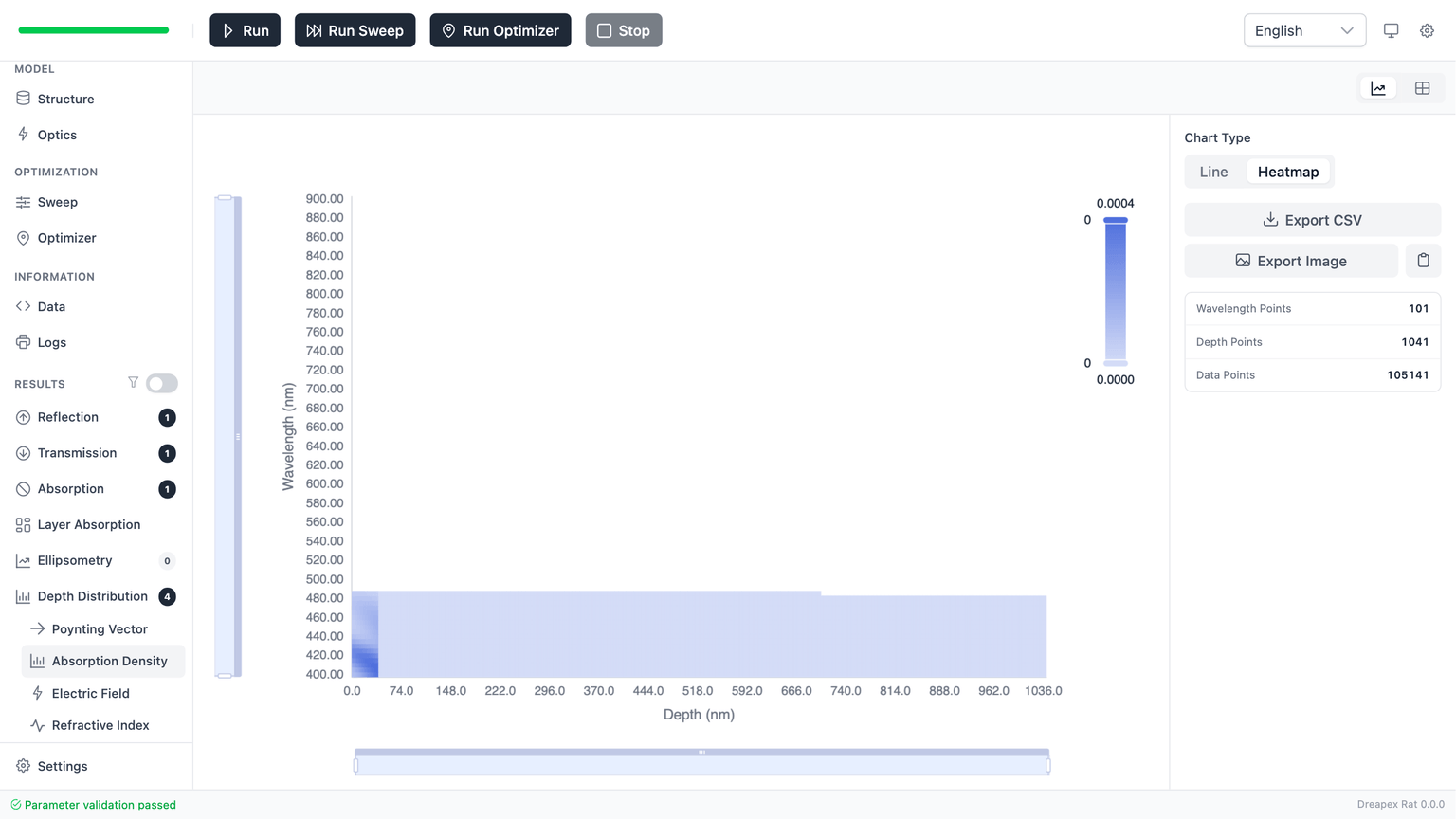
In the heatmap above, absorption density is concentrated in the narrow strip on the far left, corresponding to the ITO layer (40 nm). The remaining depth is the Substrate, which shows virtually no absorption.
When to return to Structure
If the strongest absorption appears inside a layer that should have stayed nearly transparent, check these first:
- whether the
kvalues in the material file are too large, - whether the wrong material file was applied,
- whether the functional layer and substrate were accidentally assigned in the wrong order.
Electric Field
Electric Field is the most information-dense of the three pages. It can show field magnitude, phase, and individual Cartesian components.
The current page exposes three control groups:
| Control | Purpose | Current limitation |
|---|---|---|
Magnitude / Phase | Switch between field magnitude and phase | Phase mode restricts the component list |
Component | Select Ex / Ey / Ez / E | Total magnitude E is not available in Phase mode |
Unwrap Phase | Remove -π ~ π discontinuities in phase plots | Available only in Phase mode |
Magnitude is used to locate field-enhancement regions. Phase is used to check whether the phase transitions smoothly between layers.
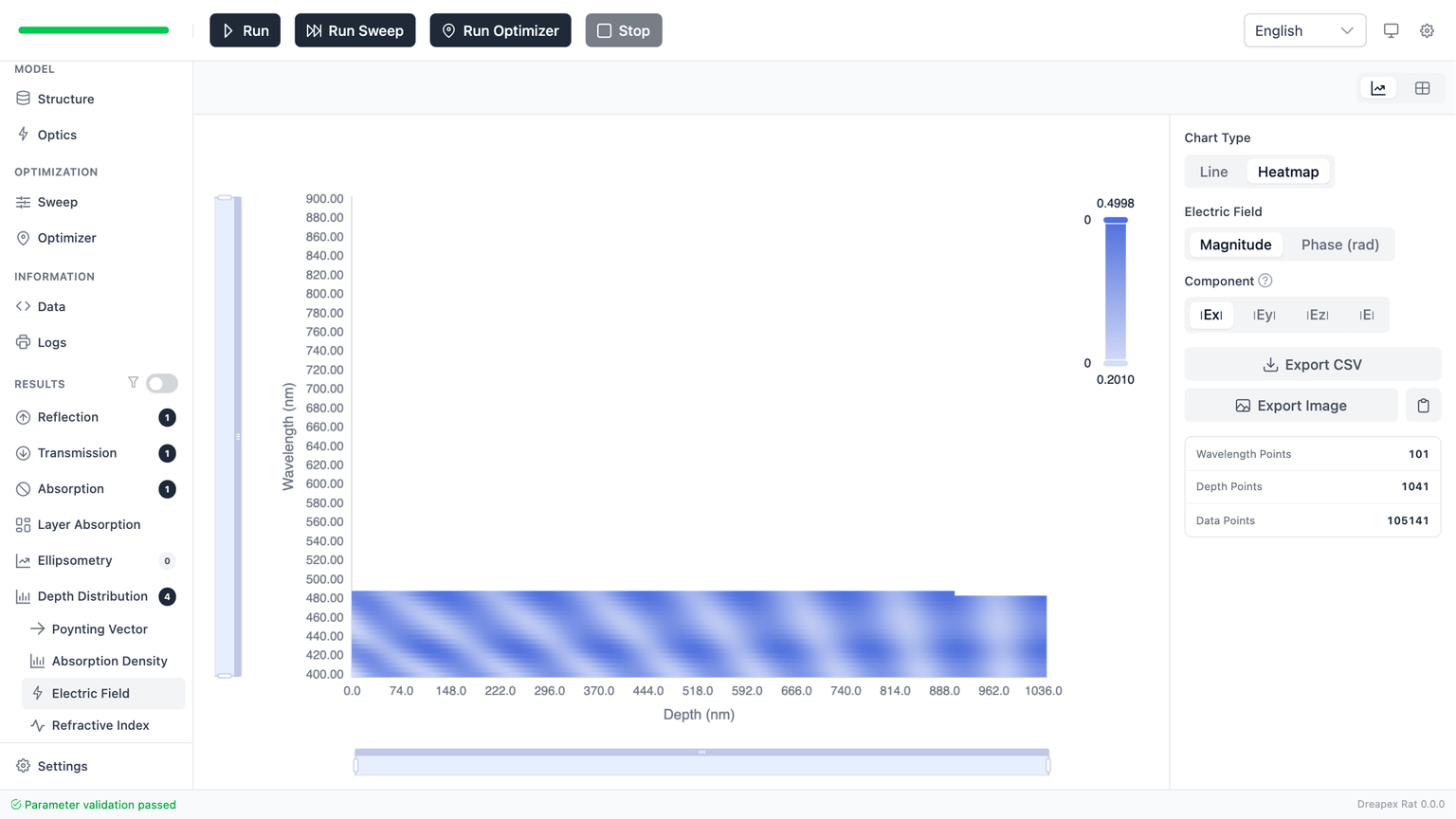
Field-enhancement checks
Use this check sequence:
- identify the brightest region in the map,
- identify which layer contains that region,
- decide whether that layer is the one where enhancement is intended,
- if not, return to
StructureorOpticsand adjust thickness, angle, or polarization.
To explain why absorption is increasing, compare the Electric Field and Absorption Density pages side by side.
Analysis order
Use this fixed sequence:
- Start with
Poynting Vectorto judge whether the energy transport remains smooth. - Move to
Absorption Densityto find where absorption is strongest. - Finish with
Electric Fieldto explain whether local field enhancement is driving that behavior. - Switch to the table or export CSV only when exact numeric extraction is required.
Common errors and checks
No data on the page
Check these first:
- whether
RunorRun Sweepwas actually executed, - whether the corresponding depth detector is enabled,
- whether any layer is still marked as
Inco..
Disabled depth-resolution input
This usually means no depth detector is currently enabled. In the current UI, Depth Resolution becomes editable only after at least one depth detector is checked.
Nearly flat heatmap
That does not automatically mean the model is wrong. Common reasons are:
- the physical quantity is genuinely varying only weakly,
- the dynamic range is narrow, so the color bar spans a small interval.
In that case, switch back to Line mode and inspect a smaller set of wavelength profiles directly.
Table fallback or large-data warning
This is usually a rendering safeguard, not a physics failure. The normal responses are:
- reduce the sweep dimensionality,
- increase the wavelength step,
- increase the depth resolution value (fewer depth points),
- export CSV and inspect the data outside the browser.
Next step
For detailed depth-distribution analysis methods, see Depth Detector Analysis. To write optimization results back into the model and verify, see Optimization Report.