Settings and Logs
This guide covers Settings, Logs, and pre-run warnings. Use it to adjust interface and performance options, inspect task records, and catch invalid or overloaded configurations before running.
Settings Page
The Settings page is divided into interface preferences, performance limits, and reset. All settings are automatically persisted to browser localStorage.
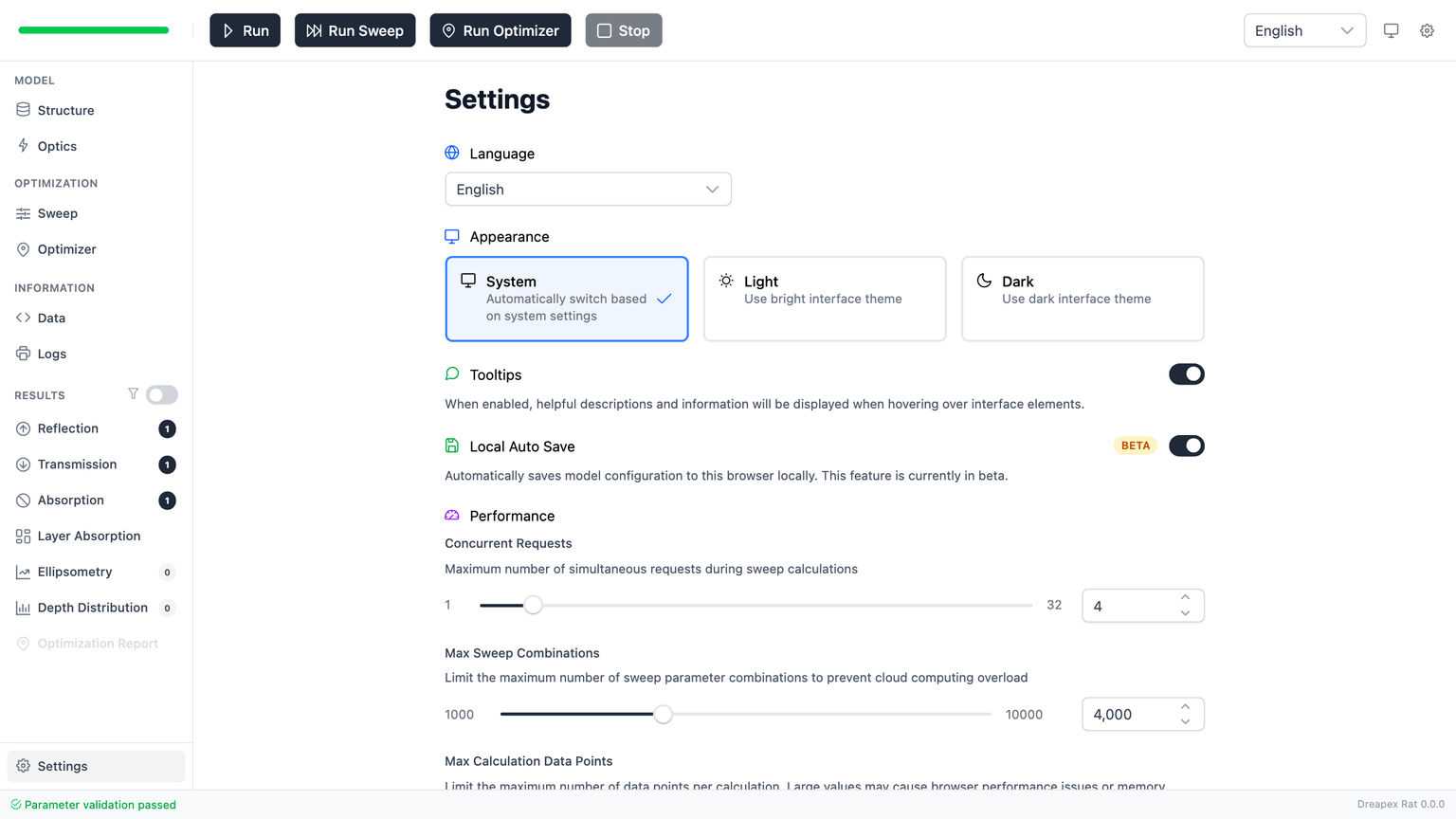
Interface Settings
| Item | Options | Default | Description |
|---|---|---|---|
| Language | English / 中文 | English | Switch UI copy; also affects documentation entry language |
| Appearance | System / Light / Dark | System | System follows the operating system dark mode state |
| Tooltips | Toggle | Enabled | Control whether field descriptions appear on hover |
| Local Auto Save | Toggle (Beta) | Enabled | Automatically save the current model to browser local storage; disabling requires confirmation and clears the saved local draft |
Local Auto Save is marked Beta. It is useful for loss protection, but should not replace explicit case export and version tracking.Performance Settings
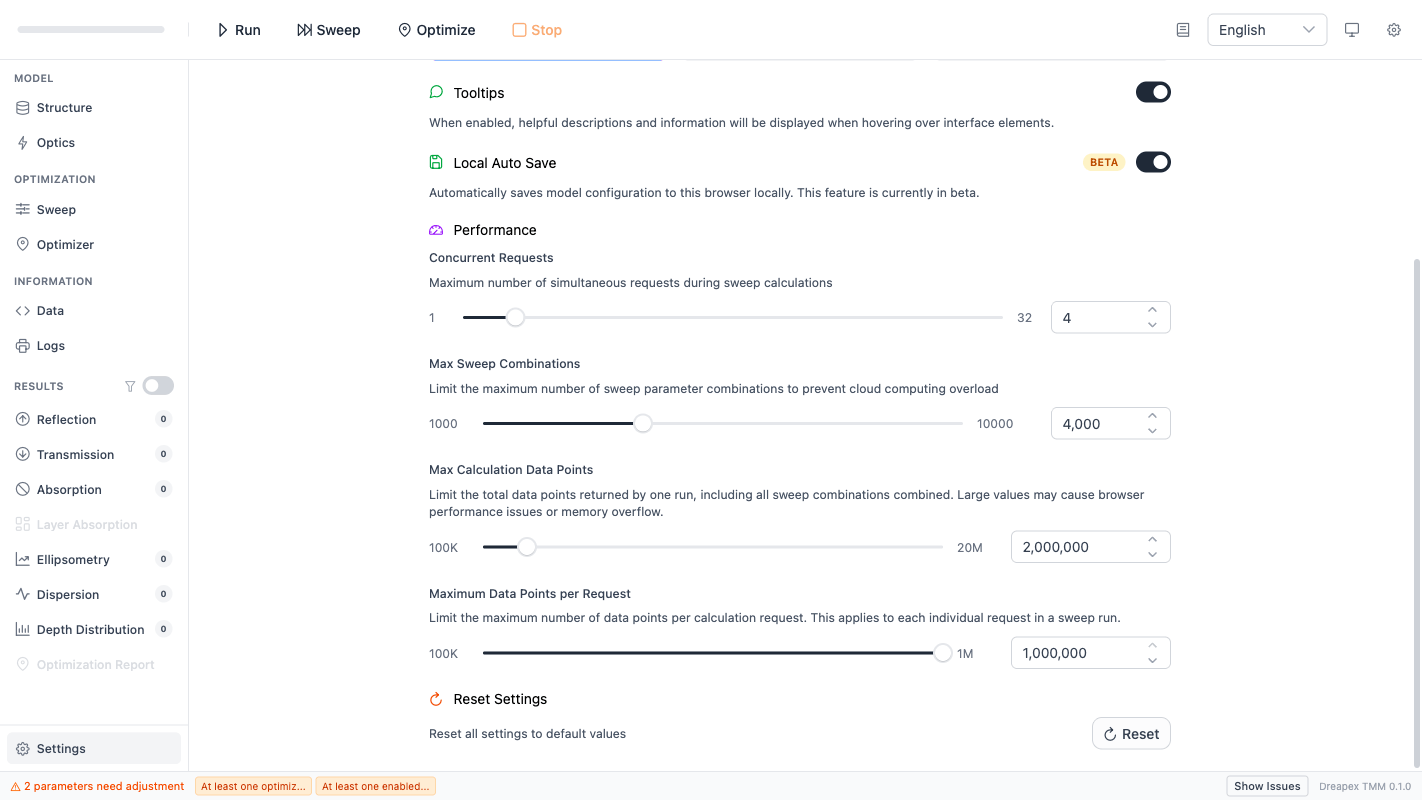
| Item | UI Range | Default | Direct Effect |
|---|---|---|---|
| Concurrent Requests | 1 ~ 32 | 4 | Parallel request count for Sweep and Optimizer |
| Max Sweep Combinations | 1,000 ~ 10,000 | 4,000 | Blocks sweep submission when exceeded |
| Max Calculation Data Points | 100,000 ~ 20,000,000 | 2,000,000 | Limits total result data points for one run (all sweep requests combined) |
| Maximum Data Points per Request | 100,000 ~ 1,000,000 | 1,000,000 | Limits result data points for each individual request in a sweep run. Hard cap is 1,000,000 |
The performance settings exist to prevent the frontend from becoming overloaded by large sweeps or oversized result sets:
- They control what the frontend is allowed to submit and render.
- They do not modify the governing equations of a single
Run. - If a task is blocked, reduce parameter range, increase wavelength step, or reduce depth sampling before raising the limits.
Maximum Data Points per Request has a hard cap of 1,000,000 that cannot be raised in Settings. Max Calculation Data Points has a hard cap of 20,000,000.Reset
Click the Reset button to restore all settings to their defaults. A confirmation dialog is required; the action cannot be undone.
Logs Page
Logs is an execution monitor for tracking the run process, diagnosing failures, and assessing task scale.
Toolbar
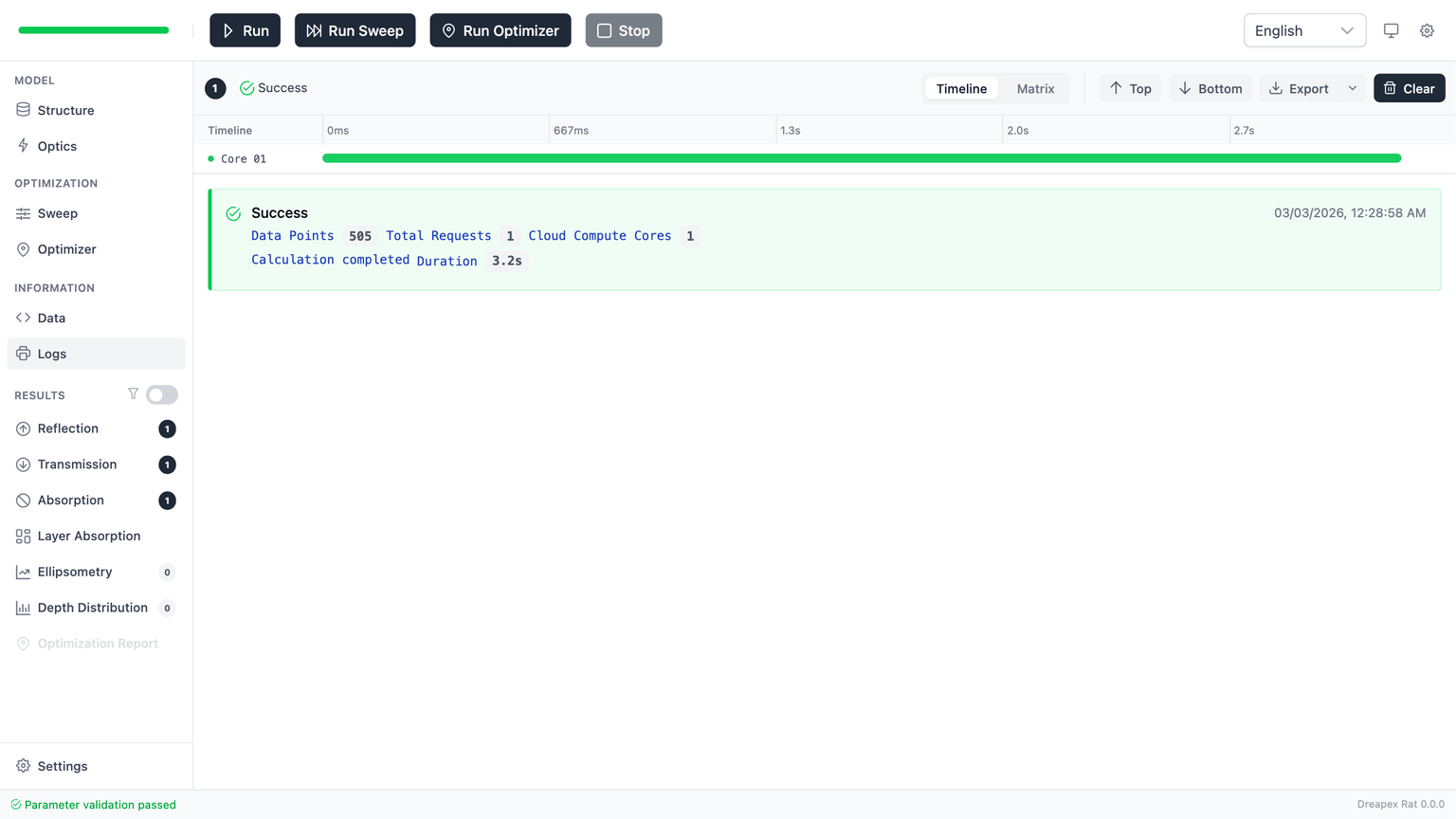
| Element | Function |
|---|---|
| Log count badge | Displays the total number of log entries |
| Latest status indicator | Shows the status icon and text of the most recent log |
| Timeline / Matrix toggle | Select visualization mode; deselect both to collapse the visualization panel |
| Top / Bottom buttons | Scroll to the top or bottom of the log list |
| Export dropdown | Export logs as JSON or CSV |
| Clear button | Clear all logs (requires confirmation) |
Timeline Visualization
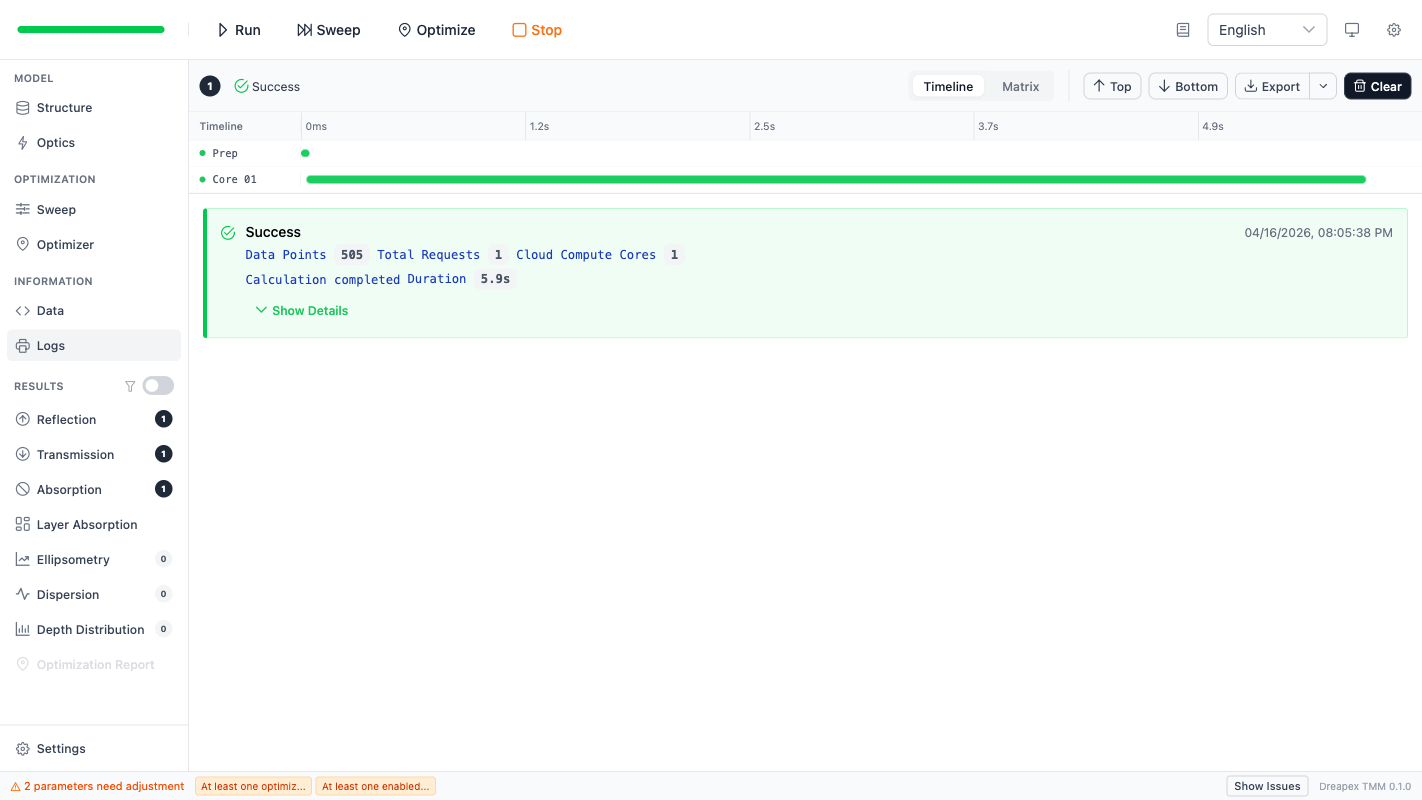
The Timeline view displays the execution process of the latest task on a time axis.
| Component | Description |
|---|---|
| Time axis | Top row with time grid markers; time range is computed automatically |
| Prep row | Shows a summary bar for preparation phases (RI Check, Structure Prep, RI Inject, Dispatch) |
| Core lanes | One row per concurrent core, showing request execution bars |
| Status dots | Green (success), red (error), orange (terminated), blue blinking (running), gray (idle) |
For optimization tasks, the Timeline uses fallback bars instead of per-request display. Each lane represents a Grid row or a Seed row.
Matrix Visualization
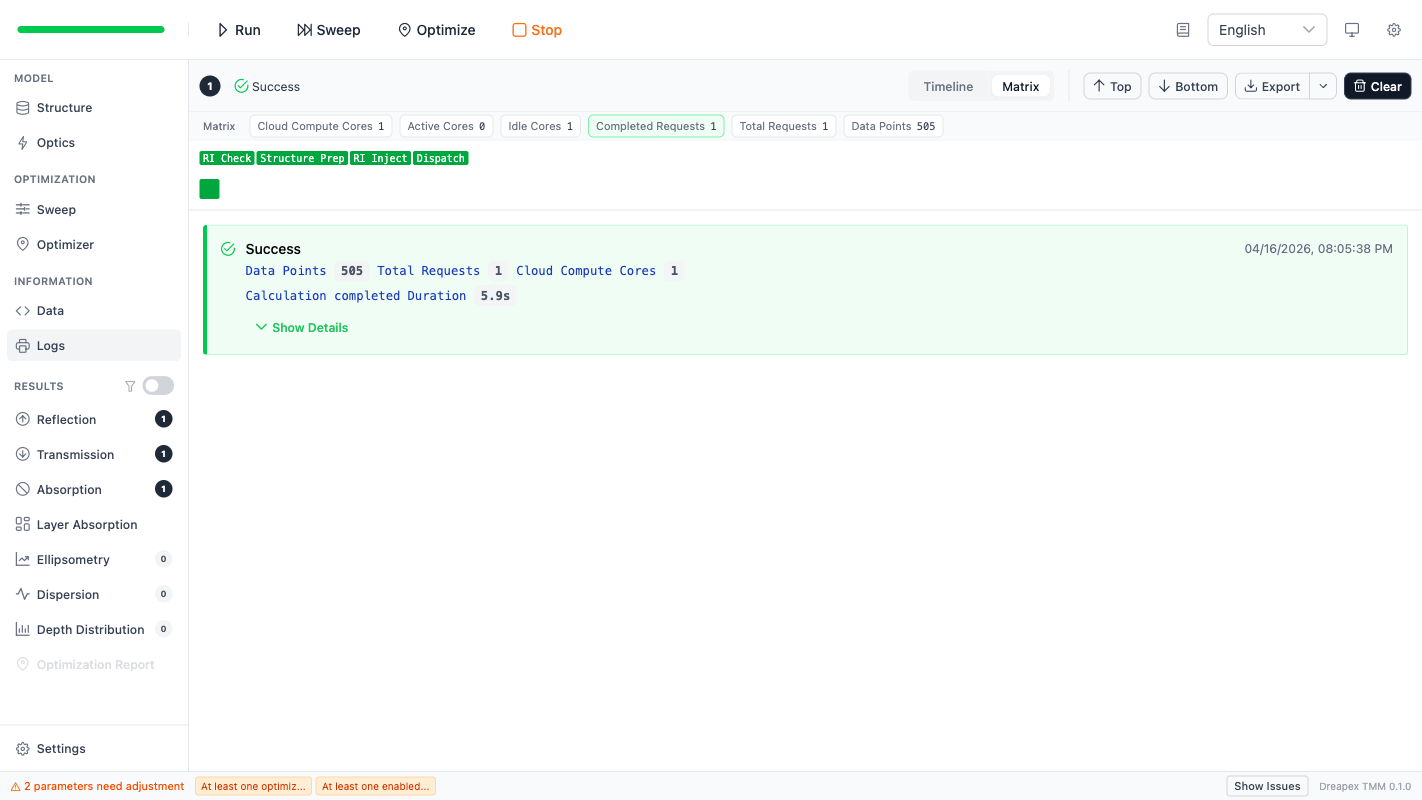
The Matrix view displays request status distribution as a grid.
Standard mode (Run / Sweep)
| Component | Description |
|---|---|
| Summary bar | Cloud Compute Cores, Active / Idle Cores, Completed / Total Requests, Data Points |
| Prep row | RI Check, Structure Prep, RI Inject, Dispatch phase cells |
| Request grid | One cell per request, filled row by row; cell size shrinks automatically with total request count |
Optimization mode
| Component | Description |
|---|---|
| Summary bar | Completed Grid Points / Total Grid Points, Completed Seeds / Total Seeds |
| Prep row | Same as standard mode |
| Grid row | Shows grid search progress (when enabled) |
| Seed rows | One row per seed, showing local optimization progress |
Cell colors
| Color | Status |
|---|---|
| Blue (pulse animation) | Running / pending |
| Green | Success |
| Red | Error |
| Orange | Terminated |
| Gray | Idle / not started |
Log Entries
Each log entry records one calculation, sweep, or optimization task.
| Field | Meaning |
|---|---|
| Status icon and text | running / success / error / terminated |
| Timestamp | Task creation time |
| Data Points tag | Total result data points |
| Total Requests tag | Total request count |
| Cloud Compute Cores tag | Concurrent core count |
| Sweep Items / Sweep Parameters | Sweep metadata (combination count, parameter labels) |
| Duration | Task runtime |
| Inline phase events | Real-time Prep and Compute phase events shown while running |
| Expandable details | Phase events and error details available after completion |
Log entries have a colored left border: blue (running), green (success), red (error), orange (terminated).
Log Export
| Format | Content | Best Use Case |
|---|---|---|
| JSON | Full structured log payload | Preserve complete context for debugging |
| CSV | Flattened log table | Count runs, durations, and status distribution |
Log export captures the execution process, not the optical result data.
Pre-Run Warnings
When clicking Run / Sweep / Optimize, the system performs pre-checks. The following dialogs may appear depending on the results.
Validation Dialog
When the model has validation errors, a Cannot Run dialog appears.
| Element | Description |
|---|---|
| Title | Context-specific message ("Fix the issues below before running / starting Sweep / starting the optimizer") |
| Issue list | Table listing all issues: location (Structure / Optics / Sweep / Optimizer), key, and error message |
| Click on entry | Navigates to the page where the issue is located |
| Go to First Issue button | Jumps to the page of the first issue |
For optimization tasks, additional checks verify that at least one objective is enabled and at least one variable is checked.
Sweep Combination Limit Exceeded
When sweep parameter combinations exceed the Max Sweep Combinations setting, a Too Many Sweep Combinations dialog appears.
| Element | Description |
|---|---|
| Current combinations | The computed combination count |
| Settings limit | The configured upper limit from Settings |
| Go to Sweep button | Navigate to the Sweep page to reduce combinations |
Compute Load Warning
Appears when the TMM solve count for a single request exceeds the solver core capacity of 50,000 solves.
| Element | Description |
|---|---|
| Capacity exceeded banner | Red message indicating the computation load exceeds TMM solver core capacity |
| TMM Solve Count per Request panel | Shows Current value and Limit value |
| Main Contributors | Lists primary factors (e.g., "wavelength 101 x polarization 2 x cone-angle rays 7 = 1,414") |
| Suggestions | Recommended actions: reduce wavelength range, increase wavelength step, reduce cone-angle sampling, lower dispersion quality, disable unneeded depth detectors |
Result Data Volume Warning
Appears when total data points or per-request data points exceed limits.
| Element | Description |
|---|---|
| Warning banner | Yellow warning for soft limit, red error for hard limit |
| Request Count | Total request count (shown for sweep runs) |
| Total Result Data Points panel | Shows Current, Settings Limit, and Hard Limit values |
| Result Data Points per Request panel | Shows Current, Settings Limit, and Hard Limit values |
| Peak request summary | Identifies the sweep parameter combination with the highest data volume |
| Suggestions | Recommended actions to reduce data volume |
| Open Settings button | Navigate to Settings to adjust limits |
Soft limit vs. hard limit
| Category | Condition | Behavior |
|---|---|---|
| Soft limit (Settings limit) | Exceeds the Settings threshold but stays under the hard cap | Continue button is enabled; the user can choose to proceed |
| Hard limit | Exceeds the system hard cap (per-request 1,000,000 / total 20,000,000) | Continue button is disabled; parameters must be reduced first |
Troubleshooting Sequence
When a run does not produce the expected result, follow this order:
- Check the latest
Logsentrystatusandmessageto confirm the task type. - Review
Data Points/Total Requests/Cloud Compute Coresto determine whether the failure is scale-related. - If the status is
error, expand details and read the failure message. - If a pre-run warning dialog appeared, use the dialog content to locate the problem source.
- Return to
Structure,Optics,Sweep, orOptimizerto correct the model or parameters.