Basic Optical Results
This guide introduces the Reflectance, Transmittance, Absorptance, and Layer Absorption results. Use R/T/A to assess overall energy distribution and Layer Absorption to locate the main absorbing layers.
Analysis Entry
| Current results page | Method page |
|---|---|
Reflectance / Transmittance / Absorptance | RTA and Layer Absorption Analysis |
Layer Absorption | RTA and Layer Absorption Analysis |
in-layer localization after Layer Absorption | Depth Detector Analysis |
| multi-dimensional sweep and optimizer entry | Overview |
Focus
This chapter covers three points:
- what
Reflectance,Transmittance,Absorptance, andLayer Absorptioneach provide - how single-run, table, and
Sweeppresentations differ - how to read
Layer Absorptionand when large-data safeguards force a table
Example Setup: Default ITO-on-Substrate Baseline
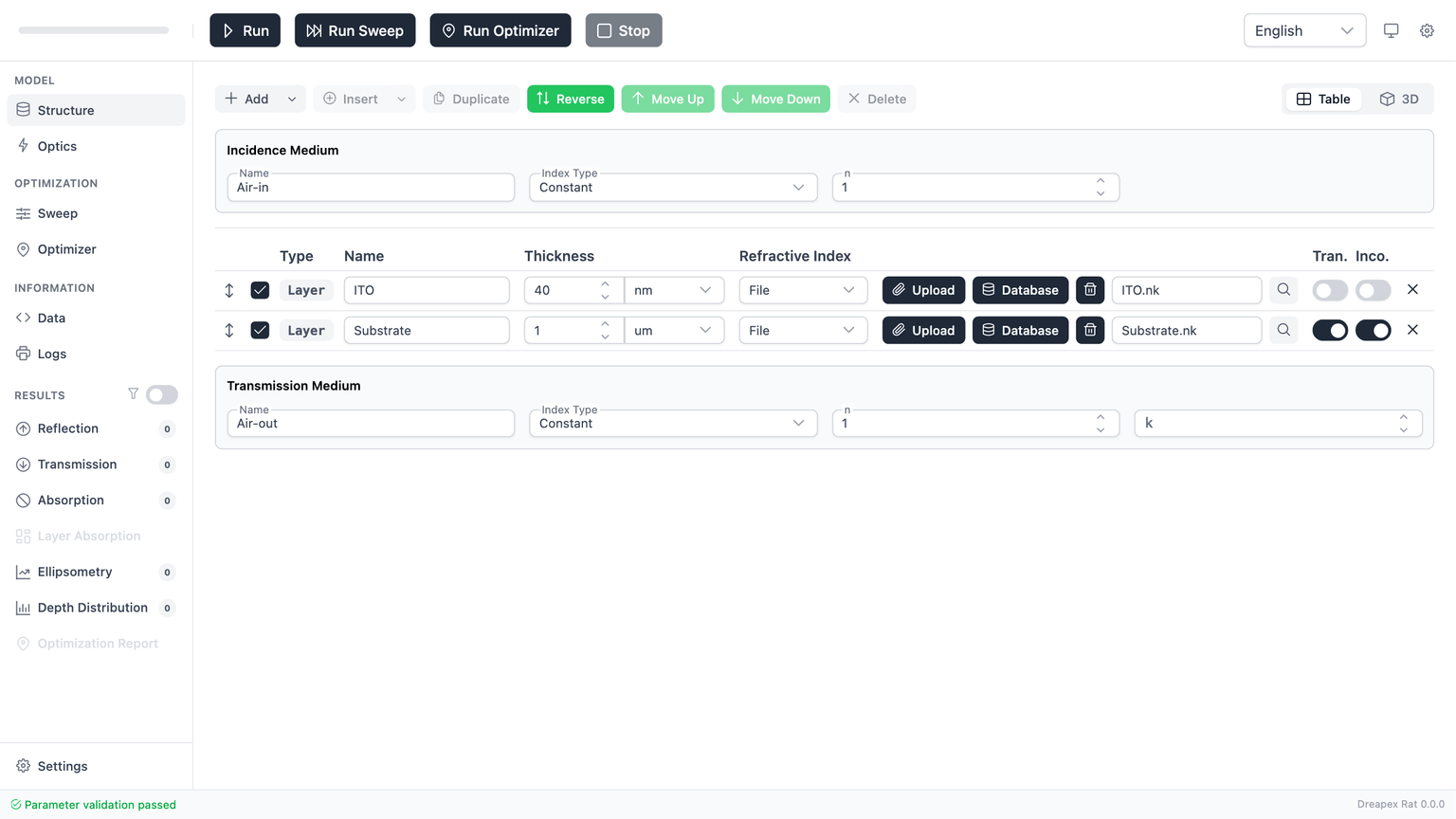
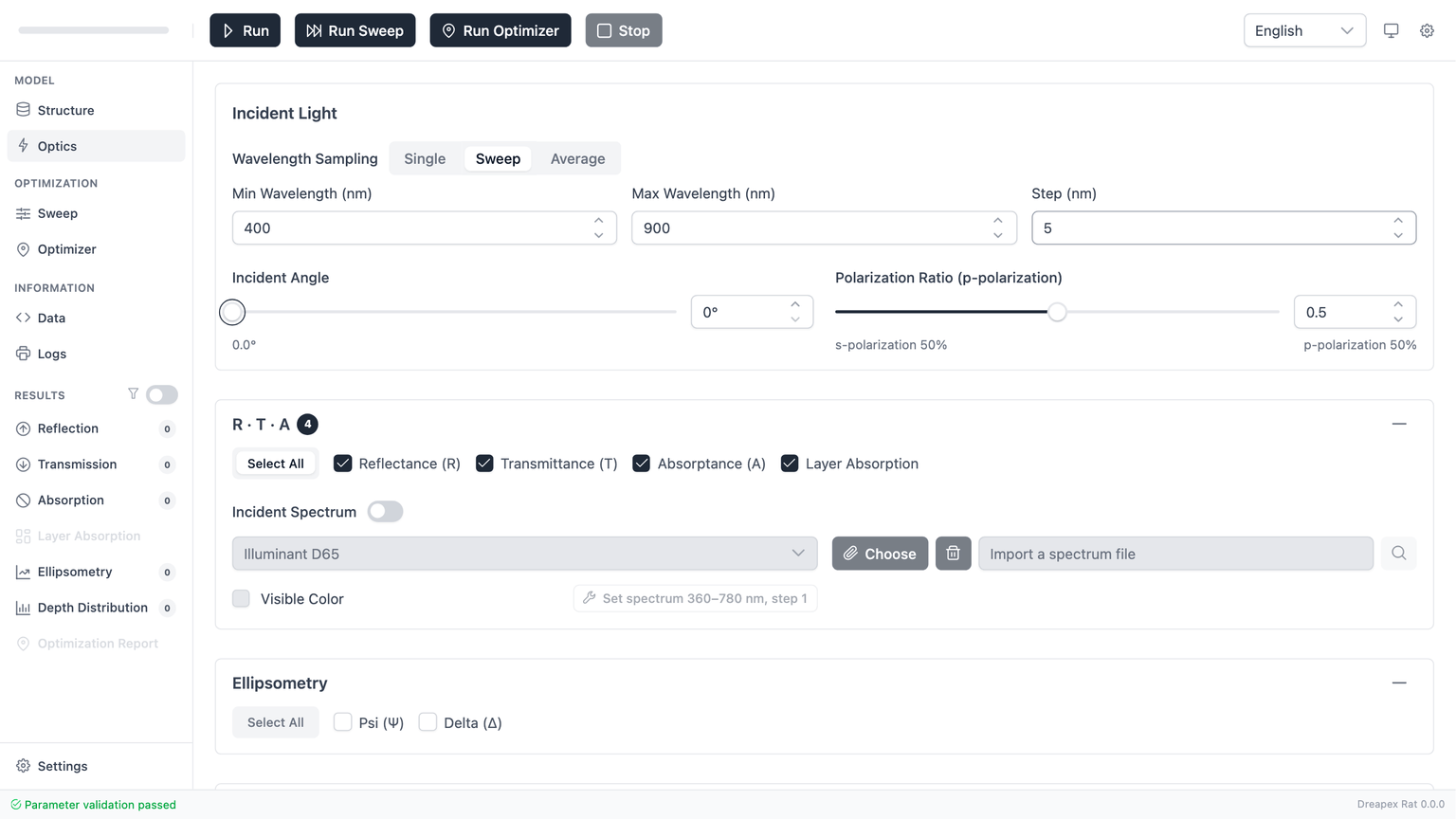
All screenshots in this chapter come from the app's built-in default model. No material files are replaced and no extra layers are added, so a first-time user can reproduce the same run immediately.
This baseline uses:
- The default
Structure:Air-in -> ITO (40 nm) -> Substrate (1 um, Incoherent) -> Air-out. - The default
Optics: wavelength modeSweep,400 -> 900 nm, step5 nm. Incident Angle = 0°andpRatio = 0.5.- Only the basic detectors enabled:
Reflectance,Transmittance,Absorptance, andLayer Absorption. - The top-toolbar
Runbutton for the single calculation.
Shared page structure
Reflectance, Transmittance, and Absorptance all reuse the same result-page shell. The layout is consistent:
- Result header bar: in
Sweepmode it shows a greenSweeptag and the active sweep-item count. - Left main area: the chart or the data table.
- Right sidebar: export buttons, chart controls, and quick statistics.
- Left result navigation counts: the number beside each result group indicates how many child results are currently available.
If the page has no usable data, the main panel shows No data. That usually means one of the following:
- no run has been executed yet
- the corresponding detector was not enabled
- this result type was not produced in the current run
Single-run results
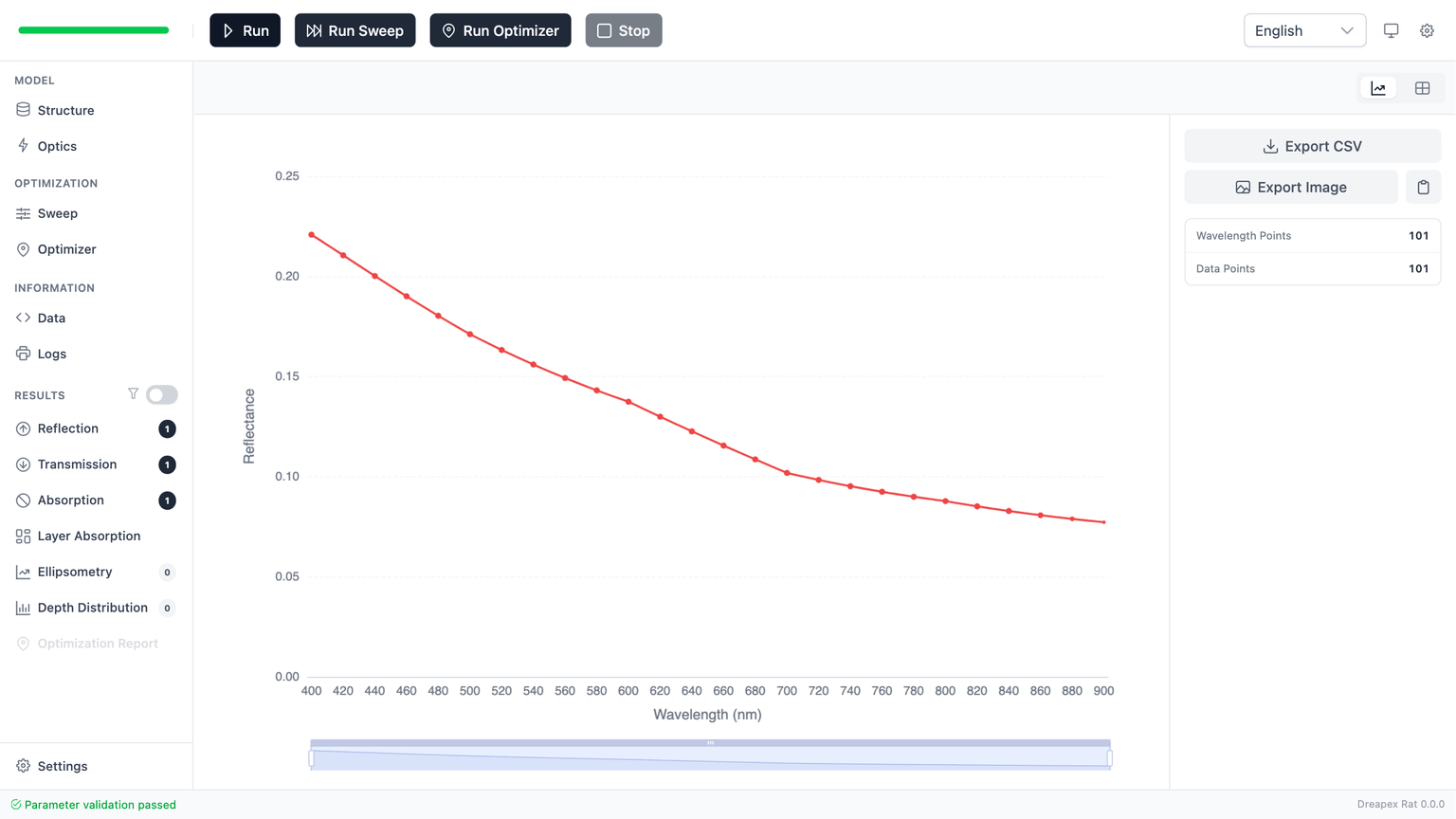
In single-run mode, Reflectance, Transmittance, and Absorptance all open in chart view by default.
Each page answers a different question:
| Page | What you are looking at | Typical use |
|---|---|---|
Reflectance | Reflected fraction of the incident energy | Anti-reflection checks |
Transmittance | Transmitted fraction of the incident energy | Throughput / transparency checks |
Absorptance | Absorbed fraction of the incident energy | Loss or absorber checks |
When the wavelength mode is Sweep, the x-axis is wavelength and the y-axis is the selected optical quantity.
Reading checklist:
- Check the overall level and trend across the full wavelength range.
- Check peaks, valleys, and knees inside the design band.
- Switch to the table only after you know which wavelengths deserve exact inspection.
Right sidebar functions
In single-run chart view, the right sidebar usually contains:
Export CSV: export the raw values for the current page.Export Image: export the current chart image.Copy Image: copy the chart to the clipboard.Wavelength Points / Data Points: quick indicators of the current data size.
Use Export Image for reports and slides. Use Export CSV when you need exact numbers in Excel, Origin, or Python.
Cross-checking R / T / A
For one normal spectral run, the baseline sanity check is:
R + T + Ashould stay close to1
Small rounding differences are acceptable, but the sum should remain physically consistent. If it drifts badly, check these first:
- whether the refractive-index files are sensible
- whether a layer that should be transparent is actually absorbing
- whether the wavelength step is too coarse for the feature you are reading
Table view
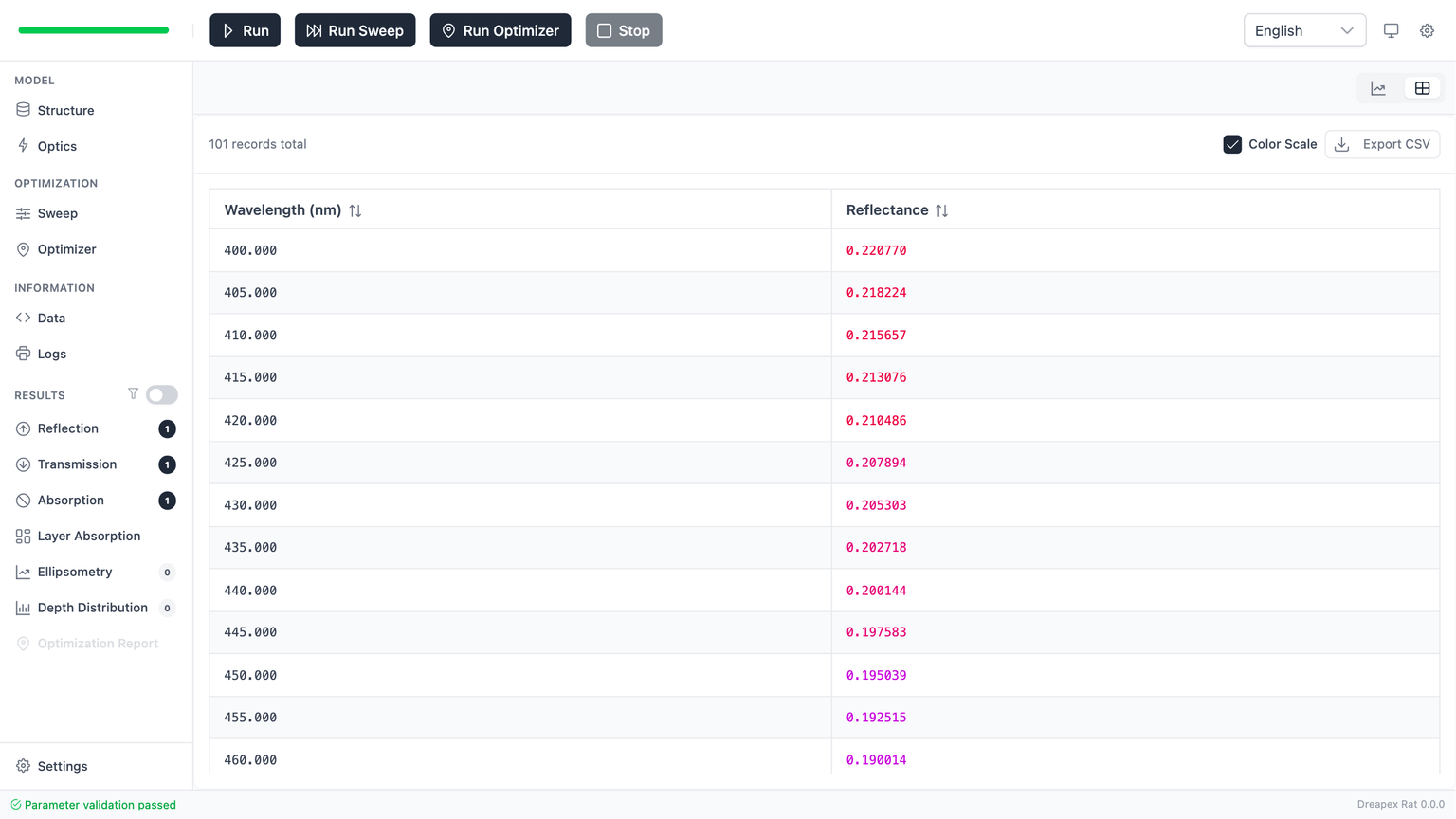
Switch to the table when you care about exact numbers rather than trend shape.
The table view is best for two jobs:
- reading an exact value at one wavelength
- validating data volume and value range before export
The most important columns are:
Wavelength (nm)- the current result-value column (
Reflectance,Transmittance, orAbsorptance)
The toolbar above the table adds a few practical controls:
Color Scale: applies a value gradient so high/low regions are easier to spot.Export CSV: exports the currently displayed data.Total records: shows how many rows are being rendered.
When table view is preferred
Prefer the table when:
- you need a reportable metric such as
R at 550 nm - you want to compare multiple designs outside the app
- the curves are too close to judge by eye
- the
Sweepdimensions are already too dense for a readable chart
Sweep results
When lastRunType = sweep and a result exists, these pages automatically switch into sweep-result mode.
Two things change immediately:
- the result header shows a
Sweeptag plus the number of sweep dimensions - the chart stops representing one run and starts representing multiple parameter combinations
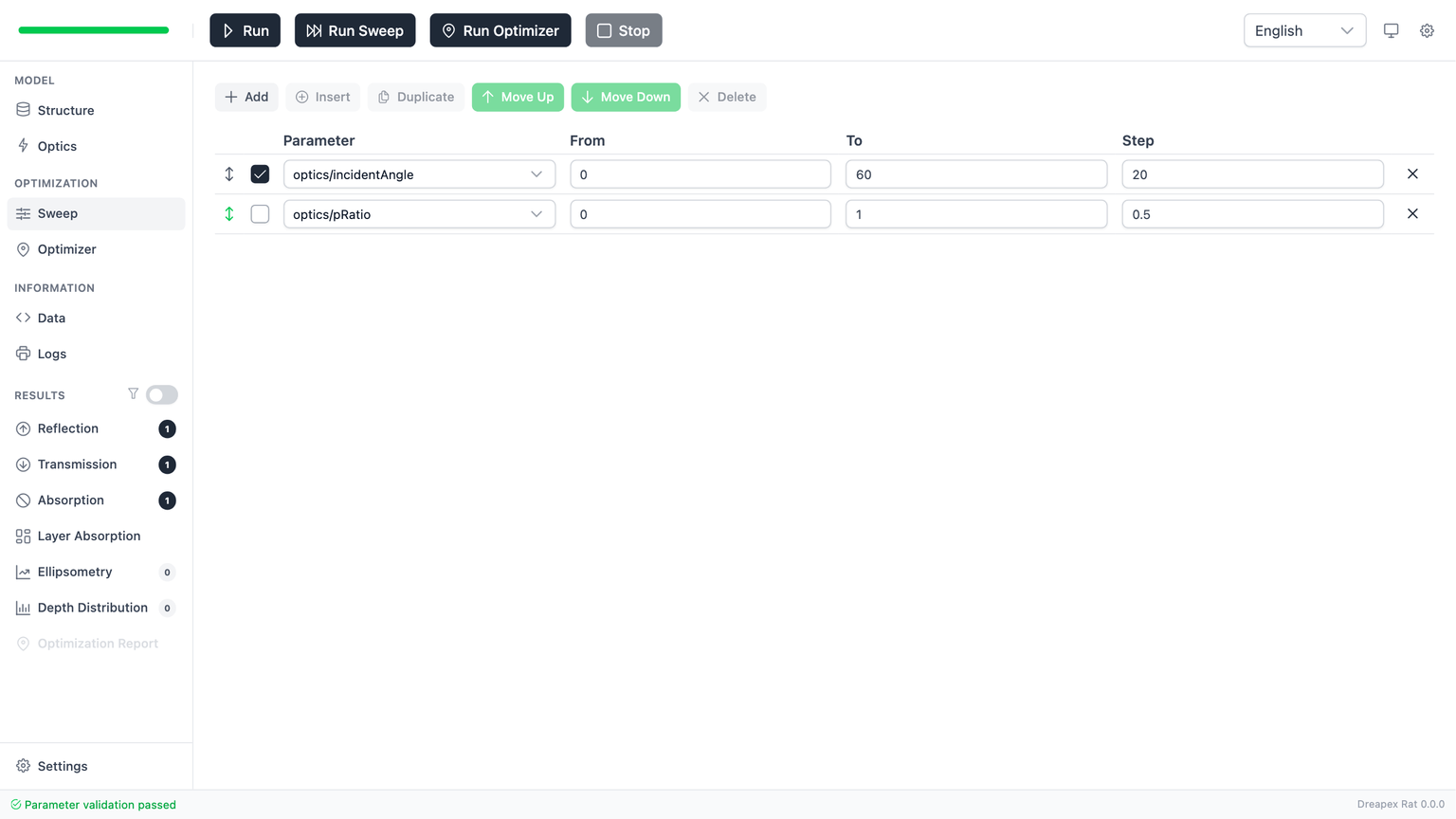
To generate the multi-line sweep example below, this chapter uses the smallest reproducible one-parameter sweep:
- Open the
Sweeppage. - Keep
optics/incidentAngleenabled and set it to0 -> 60with step20. - Disable
optics/pRatioso the result stays in line-chart mode instead of becoming a multi-parameter table. - Click
Run Sweep.
When there is only one sweep parameter and the x-axis is still wavelength, the most common presentation is a multi-line plot: one line per parameter value.
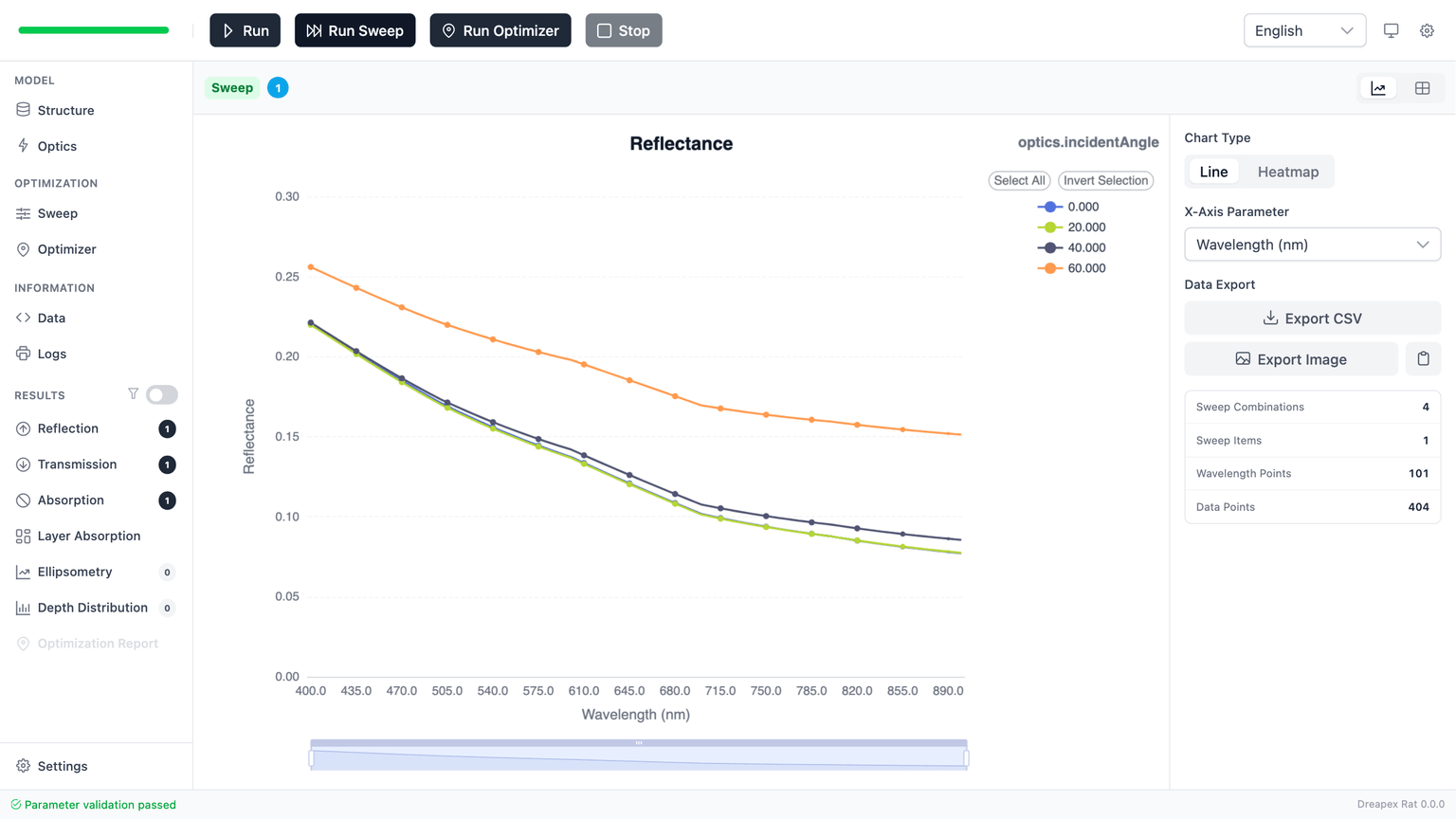
Meaning of each sweep line
In the example above:
- the legend is
Incident Angle 0 / 20 / 40 / 60are four angle values- comparing line height at the same wavelength is equivalent to comparing those angle settings directly
Use this view to check:
- does reflectance rise uniformly as angle increases?
- does the parameter change the full curve, or only a limited wavelength band?
Conditions for multi-line plots
Not every sweep result stays in line-chart mode. The app changes the visualization based on dimensionality.
For Reflectance, Transmittance, and Absorptance, the current forced-table rules are:
| Case | When the app forces a table |
|---|---|
Scalar results (Single / Average) | sweep parameter count > 3 |
| Non-scalar results (includes wavelength dimension) | sweep parameter count > 2 |
Once the page is forced into table mode, the chart/table toggle disappears because chart mode is no longer available.
Layer Absorption
Absorptance tells you how much total energy is absorbed, but not where the absorption occurs inside the stack.
That is the purpose of Layer Absorption: it splits the total absorption by layer so you can see which layer is responsible.
In single-run mode, the default and most common view is a stacked layer plot:
- the x-axis is still wavelength
- each color represents one layer
- the stacked sum at a given wavelength corresponds to the total absorption
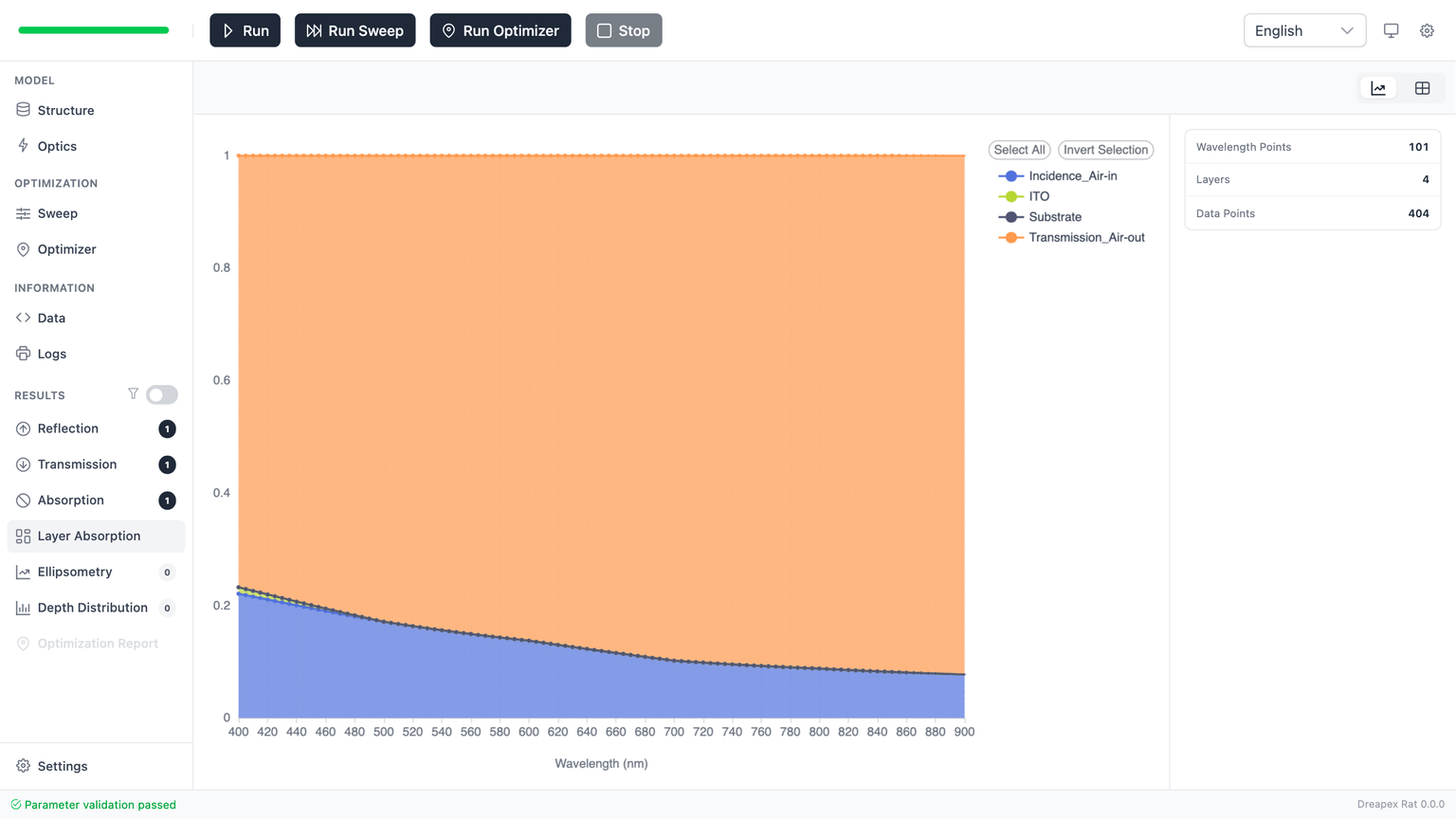
Reading Layer Absorption
Do not start by asking “which color is highest?” Use this order instead:
- identify the wavelength band where total absorption matters
- identify which layer dominates in that band
- go back to
Structureand decide whether that loss location is intentional or accidental
Examples:
- If loss is concentrated in a transparent electrode layer, the front electrode may be too lossy.
- If loss is unexpectedly concentrated in the substrate, the material file or boundary setup deserves review.
Layer Absorption in sweep mode
In Sweep mode, Layer Absorption is not just “more lines.” The current implementation can switch between several chart families:
stackedArealineheatmapscatter3Dbar3D
Availability depends on:
- whether the result is scalar or wavelength-resolved
- how many sweep parameters are active
- whether the data size crosses the 3D rendering threshold
That makes this page the best place to study how loss distribution moves when parameters change.
Large-data limits
The result pages do not render unbounded data. The current implementation uses hard limits:
| Limit | Current threshold | What happens when exceeded |
|---|---|---|
| Standard chart points | 500,000 | chart rendering is blocked and a large-data warning is shown, with CSV export as the fallback |
scatter3D points | 80,000 | 3D scatter rendering is blocked and export remains available |
bar3D points | 50,000 | 3D bar rendering is blocked (bar geometry is more expensive than scatter) |
| Chart optimization threshold | 100,000 | animations, smooth curves, and data-point markers are disabled for performance |
| Table rows | 500,000 | table rendering is blocked and a large-data warning is shown |
| Single-request TMM solve count | 50,000 | backend safety limit; the request is blocked before execution to prevent timeout or memory exhaustion |
| Single-request data points | 1,000,000 | hard cap on the number of result data points returned per request |
| Total data points | 20,000,000 | cumulative cap across all stored results |
So when you see a “data too large” warning, treat it as a rendering safeguard, not as a physics failure:
- the data can still be valid
- the browser-side renderer is simply protecting itself
- the correct response is usually CSV export or a smaller sweep space
Review flow
If you need a fast and repeatable review flow, use this order:
Reflectance: check whether the anti-reflection target is met.Transmittance: check whether usable throughput is still acceptable.Absorptance: check whether total loss is acceptable.Layer Absorption: identify which layer owns that loss.- Switch to the table or export CSV only for the wavelengths that matter.
Start with the overall results, then break down by layer.
Common errors and checks
No data on the page
Check these first:
- whether
RunorRun Sweepwas actually executed - whether the corresponding detector was enabled
- whether this page belongs to the data produced in the current run
Layer Absorption unavailable
This usually means the current result set does not include a valid layer-absorption matrix. The most common causes are:
- the relevant absorber/basic detector setup was not enabled
- the current run did not generate a valid wavelength result
Chart fallback to table view
This usually means either:
- the sweep dimensionality triggered the forced-table rule, or
- the data volume crossed the safe chart threshold
Difficult visual comparison
Do not keep guessing from the plot. Switch to the table, read the exact design wavelengths, and export CSV if necessary.
Next step
For overall performance analysis, sweep design, and optimization, see RTA and Layer Absorption Analysis. To locate absorption positions within a layer, see Depth Detector Analysis.