Optimizer
This guide explains how to use Optimizer to search for a stack that meets a target objective. It covers objectives, search variables, grid pre-search, and algorithm parameters; inspect the result in Optimization Report.
Prerequisites
Structurepasses validation.Opticspasses validation.- The optimization goal and desired direction are clear (anti-reflection, transmission enhancement, spectrum matching, etc.).
Recommended Configuration Order
- Define
Objectivesfirst (target quantity, incident light, scoring method). - Define
Variables(searchable parameters and bounds). - Tune
Grid Parameters(optional grid pre-search). - Tune
Algorithm Parameters(solver and convergence settings). - Use a small-budget first run, then increase budget only after the direction is validated.
Page Structure
The Optimizer page is divided into four vertical sections:
| Section | Function |
|---|---|
| Optimization Objectives | Defines target quantities, incident light conditions, and scoring methods |
| Optimization Variables | Defines searchable parameters and their bounds |
| Grid Parameters | Optional grid pre-search (coarse grid scan before local refinement) |
| Algorithm Parameters | Local solver selection and convergence parameters |
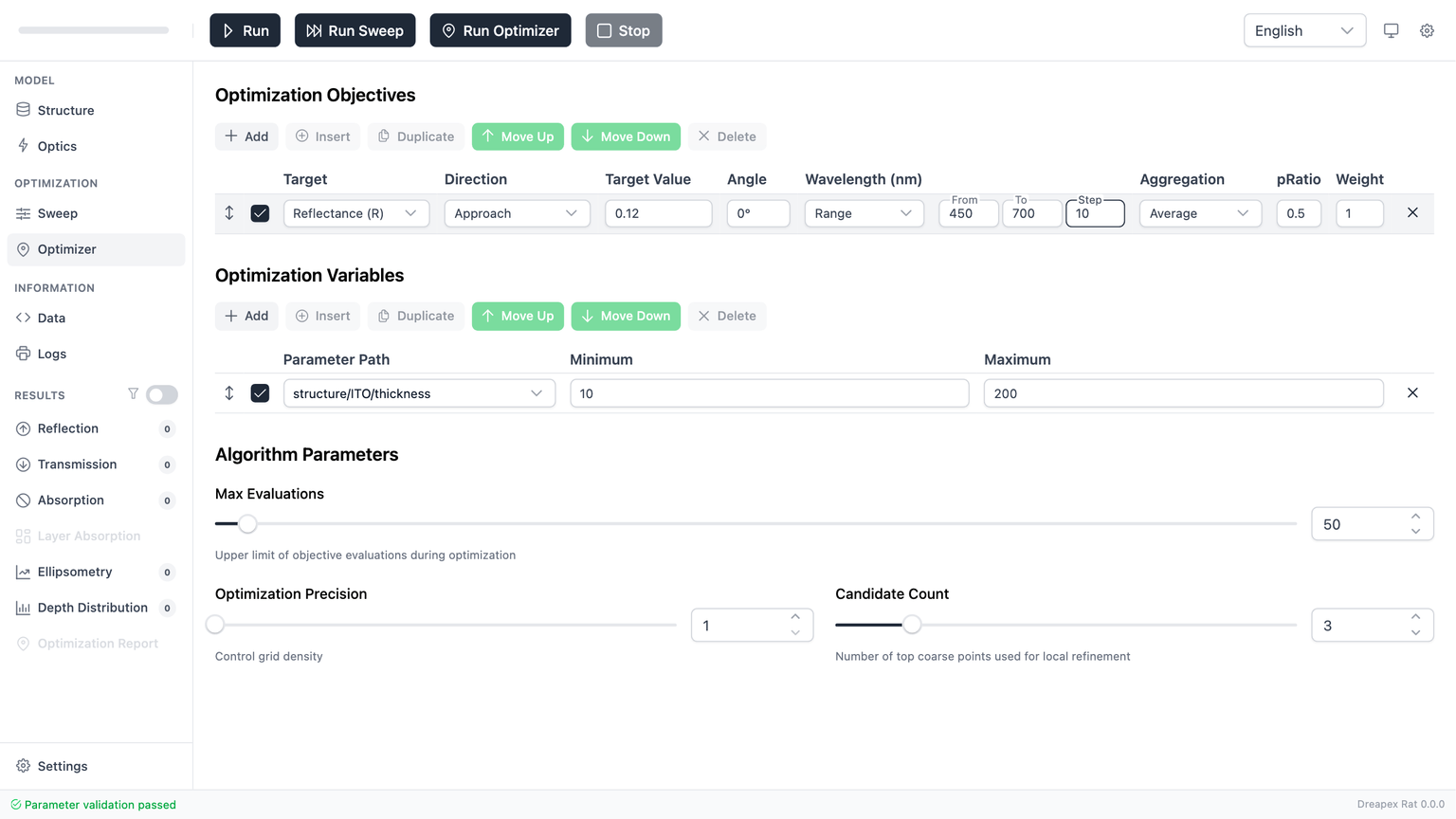
The upper half contains the objectives and variables sections (empty-state example):
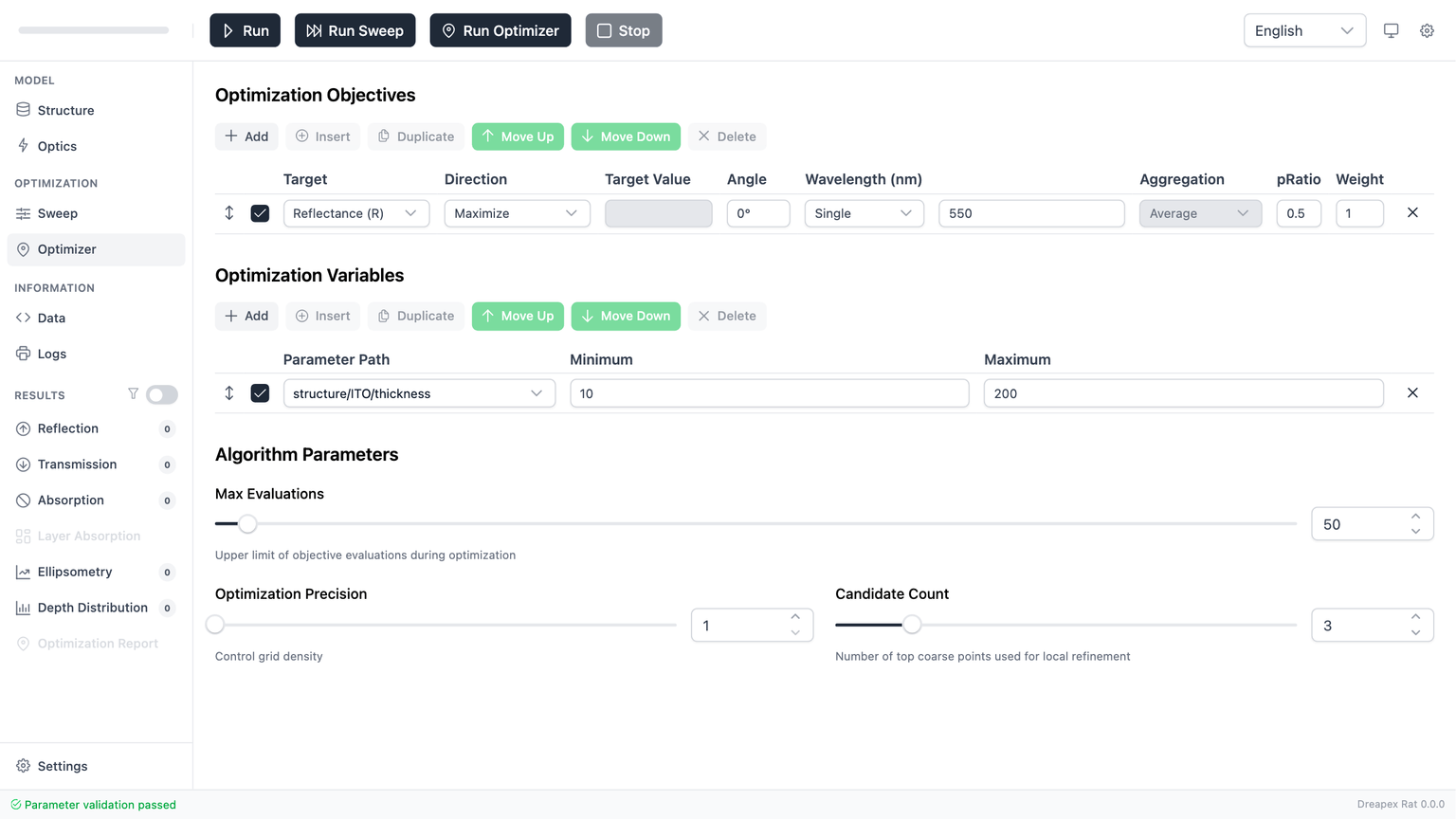
The lower half contains the grid parameters and algorithm parameters sections:
Global Toolbar
Run Optimizeris available only when the entire model is valid.- Once the run starts, all input controls on this page are locked.
- If this page contains errors, the footer groups them under
Optimizerand keeps the run entry disabled.
Optimization Objectives
The objectives section defines what "better" means. All enabled objectives are combined into one weighted fitness score.
Toolbar
| Action | Description |
|---|---|
Add Objective | Creates a new objective (default: Reflectance, Maximize, 550 nm) |
Edit | Opens the editor dialog for the selected objective |
Duplicate | Duplicates the selected objective (including all settings) |
Move Up / Move Down | Reorders objectives |
Delete | Removes the selected objective |
Objective List Table
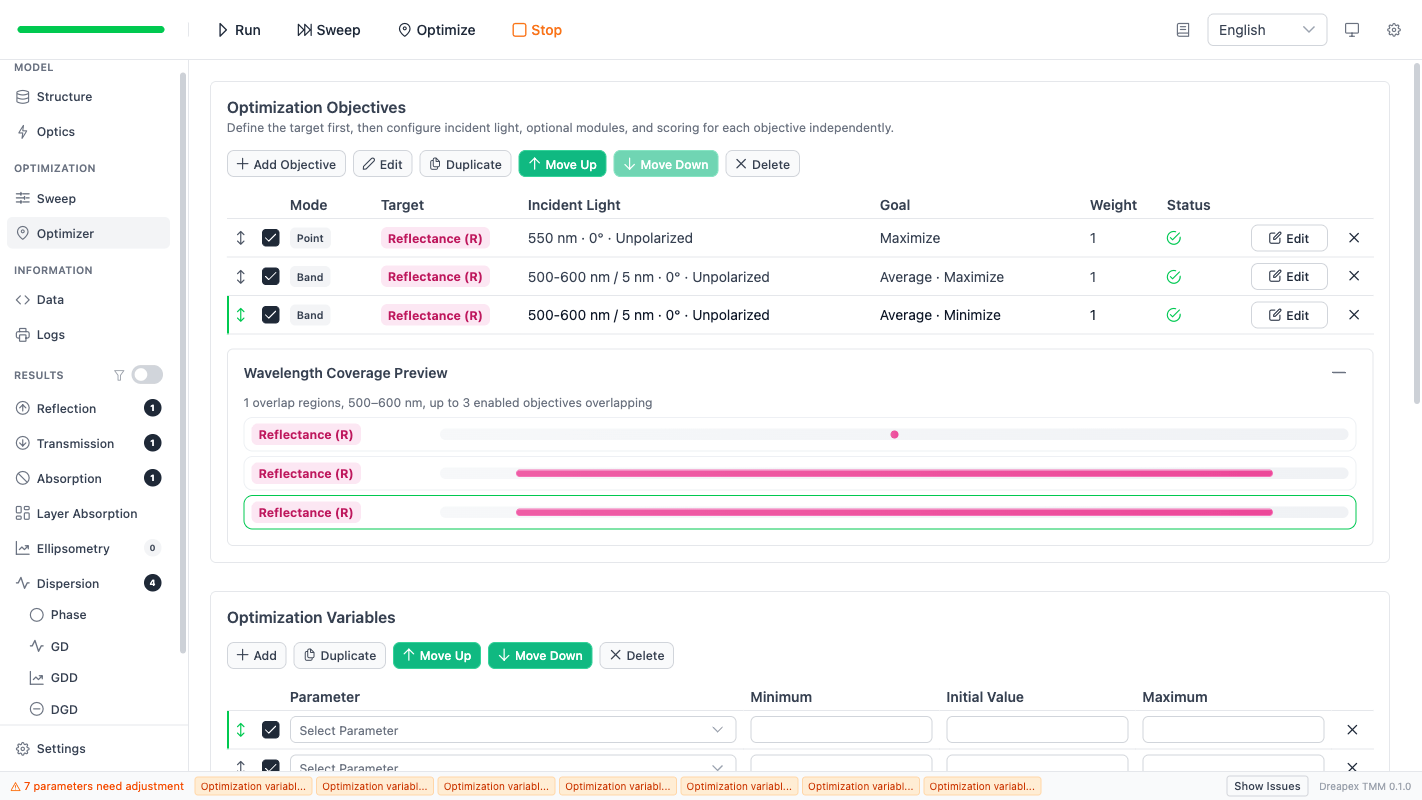
The list table shows a summary for each objective. Double-click a row or click the Edit button to open the editor dialog.
| Column | Content | Notes |
|---|---|---|
| Reorder handle | Drag icon | Drag to reorder rows |
| Enable checkbox | Checkbox | Disabled objectives do not participate in fitness calculation |
Mode | Badge: Point / Band / Curve Fit / Color | Derived automatically from wavelength mode and goal type |
Target | Color-coded tag | Magenta = R, Cyan = T, Orange = A |
Incident Light | Summary text | e.g., "550 nm · 0° · Unpolarized" or "400-700 nm / 5 nm · 45° · S" |
Goal | Summary text | e.g., "Maximize" or "Average · Minimize" or "Curve Fit · RMSE" |
Weight | Number | Default 1, minimum 0.000001 |
Status | Status icon | Green check = Ready, Red X = Needs Review (hover for details) |
Edit button | Button | Opens the editor dialog |
Delete button | X button | Removes this objective |
Below is a complete example with 3 objectives (mixed Point and Band modes) and the Wavelength Coverage Preview:
Mode Derivation Logic
The Mode badge in the objective list is derived automatically from the current configuration; no manual selection is needed:
| Condition | Mode |
|---|---|
| Color Match goal selected (Reflection Color / Transmission Color) | Color |
| Curve Fit scoring method selected | Curve Fit |
| Single wavelength + Scalar Goal | Point |
| Sweep wavelength + Scalar Goal | Band |
Target Color Coding
The objective list table and Wavelength Coverage Preview use a unified color scheme:
| Target | Color | Applied to |
|---|---|---|
| Reflectance (R) / Reflection Color | Magenta / Pink | Tag + preview bar fill |
| Transmittance (T) / Transmission Color | Cyan / Teal | Tag + preview bar fill |
| Absorptance (A) / Layer Absorption | Orange | Tag + preview bar fill |
Wavelength Coverage Preview
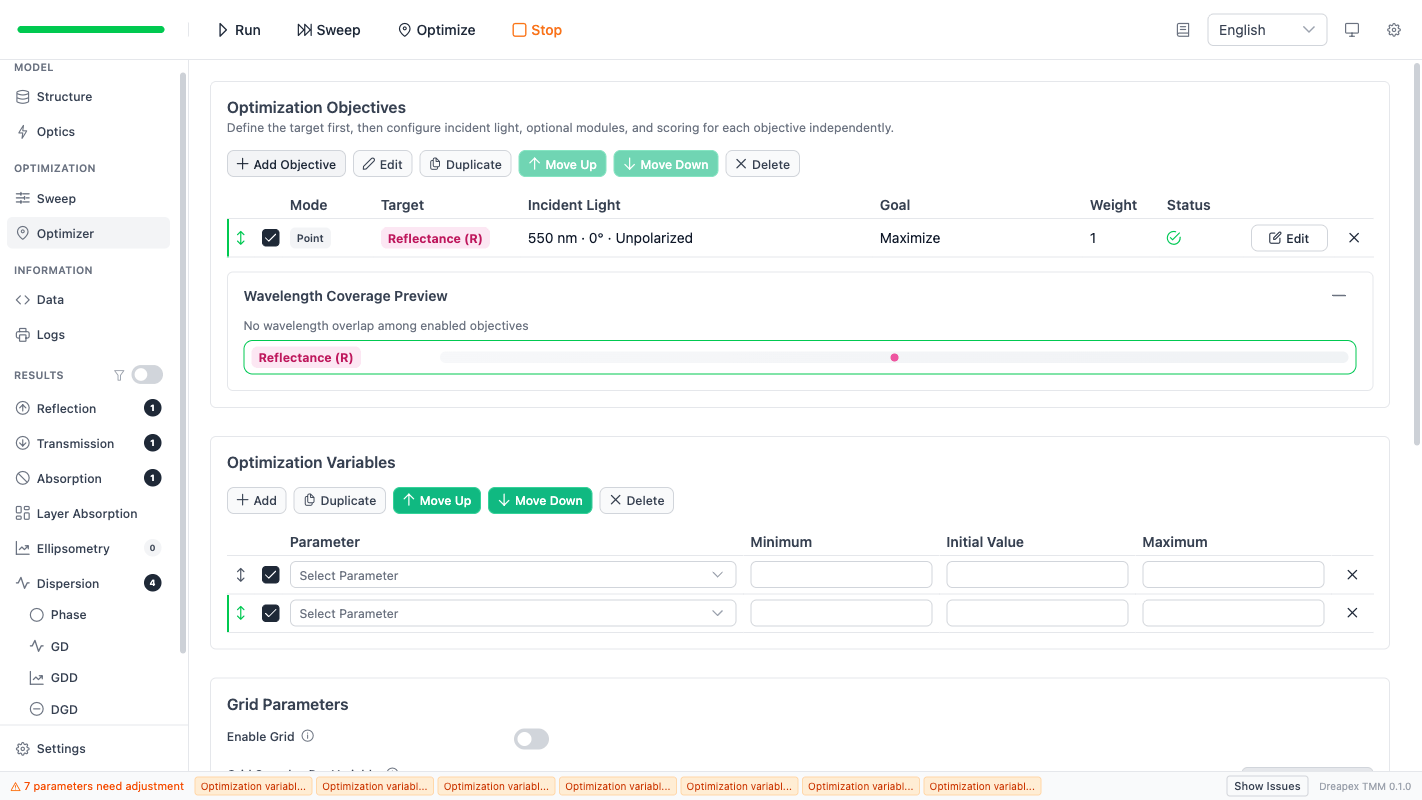
Below the objective list is a collapsible Wavelength Coverage Preview panel that visualizes each objective's wavelength range as horizontal bars.
| Feature | Description |
|---|---|
| Point objectives | Shown as a dot marker |
| Sweep / Band objectives | Shown as a horizontal bar |
| Color coding | Matches the Target color (Magenta / Cyan / Orange) |
| Disabled objectives | Shown at 40% opacity |
| Click interaction | Click a bar to select the corresponding objective |
| Summary text | "{N} overlap regions, {range}, up to {M} enabled objectives overlapping" |
Below is the Wavelength Coverage Preview with a single objective (displayed as a dot marker):
With multiple objectives, the preview panel shows multiple bars with overlap annotations in summary text:
Multi-Objective Best Practices
Core strategies for multi-objective optimization:
- Point + Band combination: Use a Point objective to lock the extremum at the design wavelength, and a Band objective to ensure broadband performance.
- Weight allocation: Higher Weight directs the solver to invest more optimization effort on that objective.
- Independent incident light: Each objective's incident light conditions are configured independently, allowing different angles and polarization states within the same optimization run.
Example for broadband anti-reflection coating design:
| # | Target | Mode | Wavelength | Goal | Weight |
|---|---|---|---|---|---|
| 1 | R | Point | 550 nm | Minimize | 2 |
| 2 | R | Band | 400-700 nm | Average · Minimize | 1 |
| 3 | T | Band | 400-700 nm | Average · Maximize | 0.5 |
This configuration sets reflectance minimization at the design wavelength as the highest priority (weight 2), broadband average reflectance minimization as the secondary objective (weight 1), and transmittance maximization (weight 0.5) as a supplementary direction.
For curve fitting scenarios, add one objective in Curve Fit mode with a target spectral shape, and another using Scalar Goal to enforce a floor value (for example, Stay in Range mode to ensure reflectance does not exceed a threshold).
Objective Editor Dialog
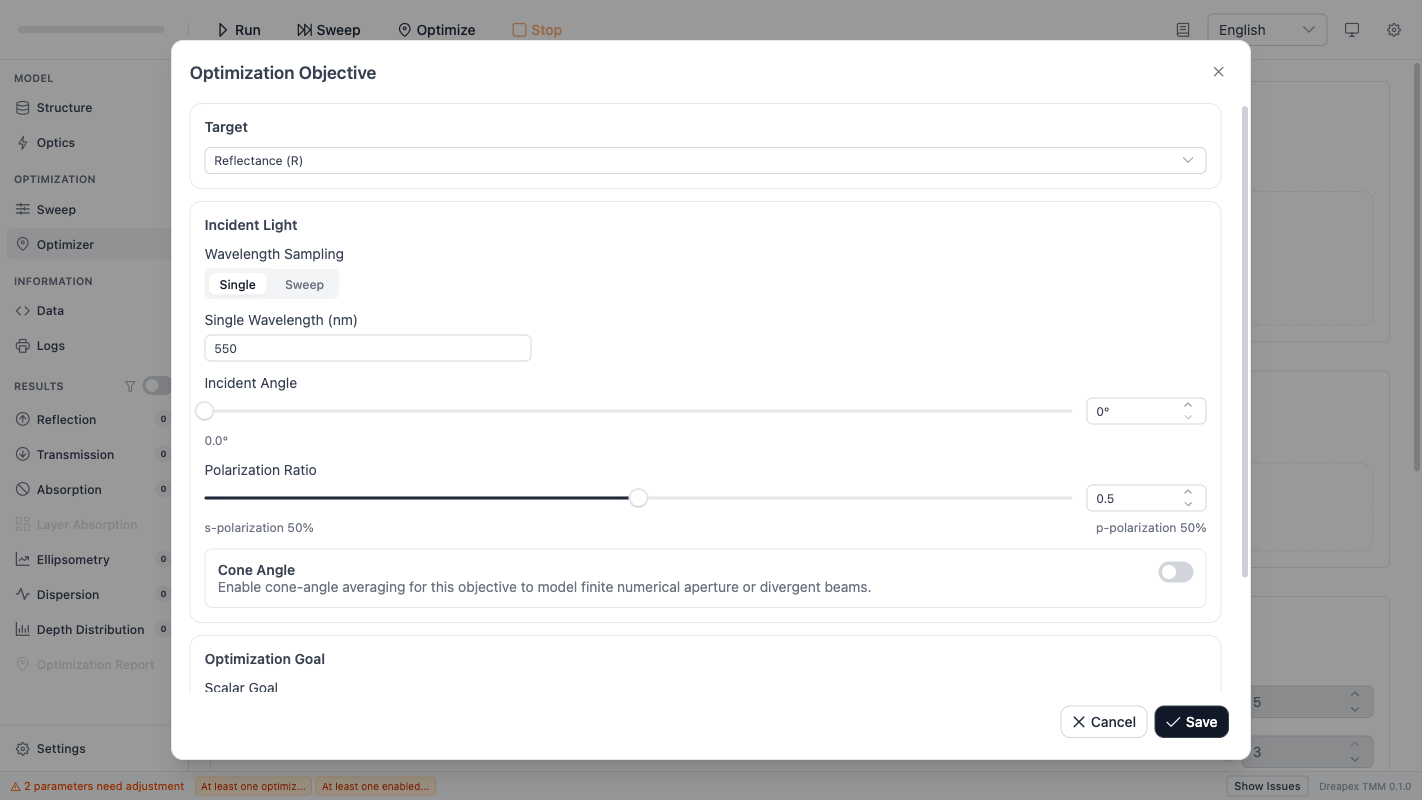
Click the Edit button or double-click an objective row to open the editor dialog. The dialog has three sections: Target, Incident Light, and Optimization Goal.
Target Section
Select the physical quantity to optimize:
| Quantity | UI Label | Description |
|---|---|---|
R | Reflectance (R) | Reflectance |
T | Transmittance (T) | Transmittance |
A | Absorptance (A) | Absorptance |
layerAbsorption | Layer Absorption | Single layer or layer group absorption; requires selecting a specific layer or group |
reflectionColor | Reflection Color | Reflection color coordinate matching |
transmissionColor | Transmission Color | Transmission color coordinate matching |
When Layer Absorption is selected, a secondary selector appears for choosing the target layer or layer group.
When Reflection Color or Transmission Color is selected, the system automatically switches to Sweep mode, enables incident spectrum, enables color calculation, and locks the Goal to Color Match.
Incident Light Section
Each objective has independent incident light conditions, separate from the global Optics page.
Wavelength Sampling
| Mode | Fields | Description |
|---|---|---|
Single | Single Wavelength (nm) | Evaluates one wavelength point, minimum 1 nm |
Sweep | Start Wavelength / End Wavelength / Step (nm) | Evaluates a wavelength range point by point; Start < End, Step > 0 |
Color targets are forced to use Sweep mode.
Incident Angle
Range: 0 deg to 89.9 deg. Slider and numeric input are linked.
Polarization Ratio
Range: 0 to 1. 0 = pure s-polarization, 1 = pure p-polarization, 0.5 = unpolarized.
Cone Angle (Optional Module)
Models finite numerical aperture or divergent beams. When enabled:
| Parameter | Range | Description |
|---|---|---|
| Half-angle | 0 deg to 89.9 deg | Half-cone angle |
| Distribution | Uniform / Lambertian | Angular distribution |
| Ring Count | 2 to 20 | Number of rings |
Incident Spectrum (Optional Module)
Available only in Sweep mode. When enabled, the incident spectrum acts as wavelength weights for weighted averaging or weighted curve fitting.
| Source | Description |
|---|---|
| Illuminant A | Incandescent standard illuminant |
| Illuminant D65 | Daylight standard illuminant |
| File | Load a custom spectrum file (.txt / .pl) |
For color targets, the incident spectrum is automatically enabled and requires configuring source and observer angle (2 deg / 10 deg).
Optimization Goal Section
The available goal type depends on the combination of Target and wavelength mode.
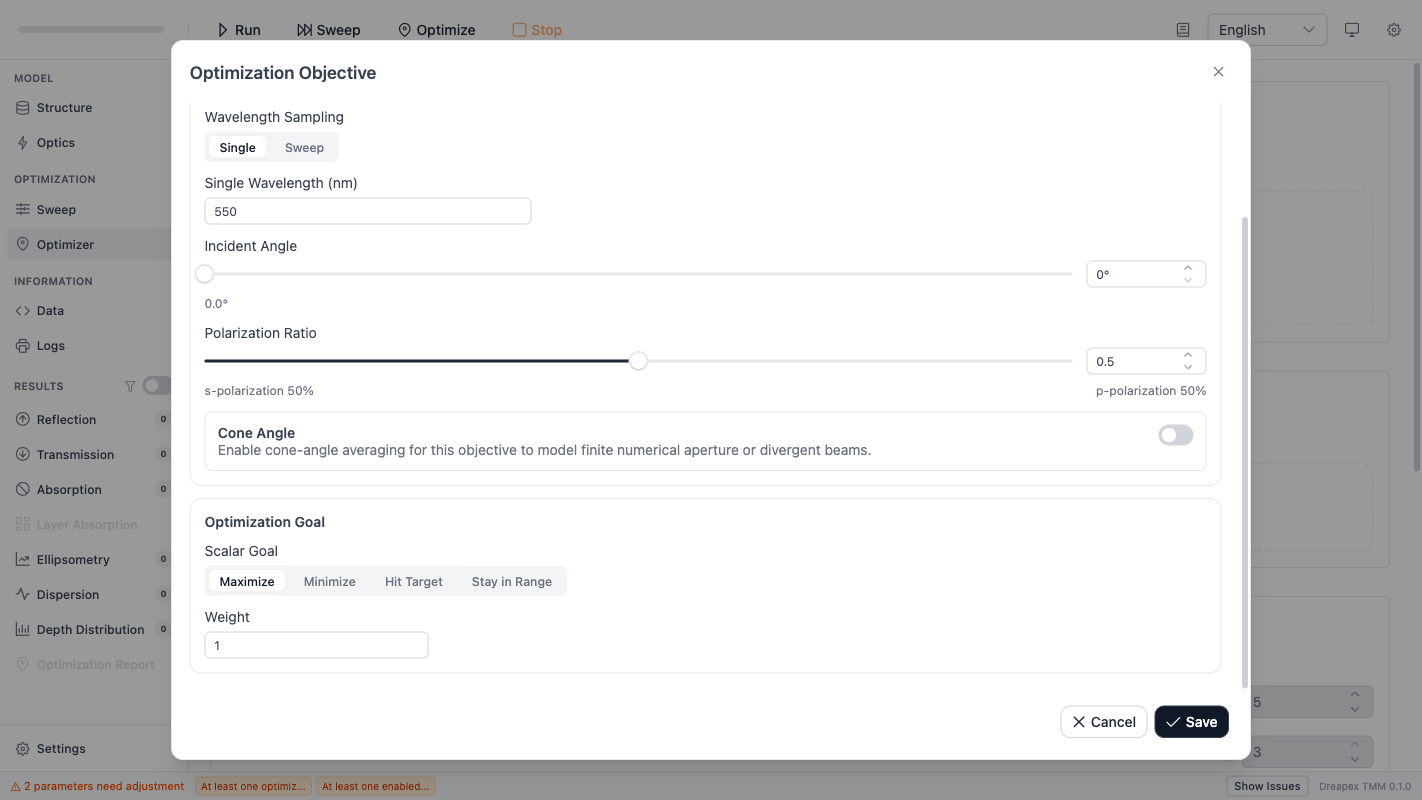
Scalar Goal
Available for all non-color targets.
| Parameter | Description |
|---|---|
| Aggregator | Appears only in Sweep mode. Options: Average / Minimum / Maximum / Integral; becomes Weighted Average when incident spectrum is enabled |
| Mode | Maximize / Minimize / Hit Target / Stay in Range |
| Target Value | Only for Hit Target mode, range 0 to 1 |
| Lower Bound / Upper Bound | Only for Stay in Range mode, range 0 to 1, Upper >= Lower |
In Single wavelength mode, no Aggregator is needed; the score is evaluated directly at that wavelength.
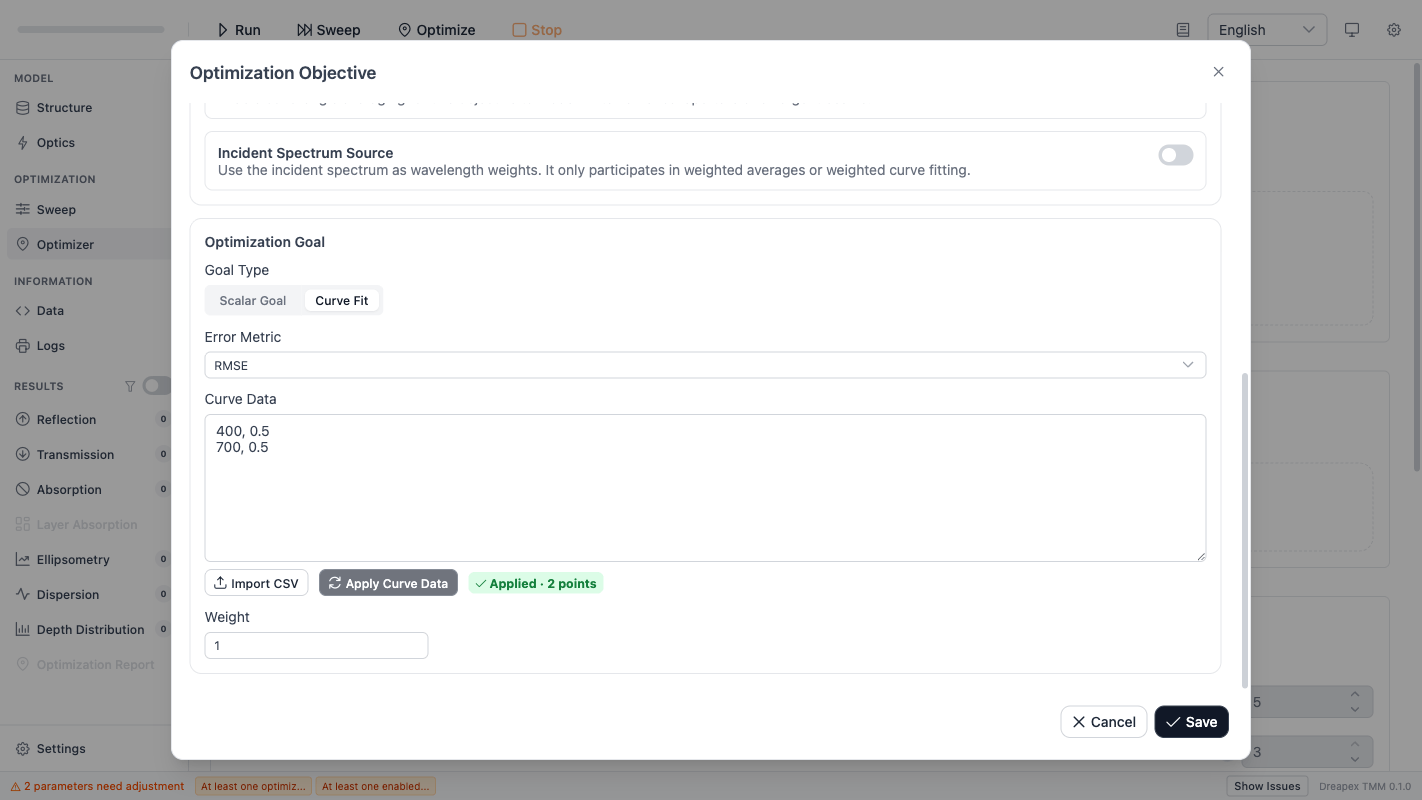
Curve Fit
Available only in Sweep mode. The goal is to match the optimized spectrum to a given target curve.
| Parameter | Description |
|---|---|
| Error Metric | RMSE (default); becomes Weighted RMSE when incident spectrum is enabled |
| Curve Data | List of curve points (≥ 2); edited via the Chart / Table tabs |
| Import CSV | Import curve data from a .csv / .tsv / .txt file (wavelength, value[, weight] per row) |
| Fit to Sampling | Extend the two ends of the curve to cover the current Sweep range |
| Densify to Sampling Grid | Resample on the current Sweep grid so curve points map one-to-one onto solver wavelengths |
| Apply | Apply the current point list and validate against the current Sweep range |
Curve Data supports two editing views:
| View | Description |
|---|---|
Chart | Line + scatter plot. Drag points to change values; click an empty area to add a point. Best for sketching the target spectrum. |
Table | Explicit table editing of wavelength / value / weight. Best for transcribing values from a measurement report. |
Both views share the same draft. Switching tabs does not lose edits. Changes stay as a draft until Apply is pressed; the status tag indicates the state.
After the Apply operation, a status tag indicates the current data state:
| Status Tag | Color | Meaning |
|---|---|---|
| Applied · N points | Green | Data successfully parsed and applied |
| Unapplied · edits pending | Yellow | Point list was modified but not yet applied |
| Sampling changed | Yellow | Sweep range or step changed; re-Apply required |
| Error | Red | Validation failed; check the error message |
Apply before saving. Changing the Sweep settings marks the curve as dirty; re-Apply is required before saving.Color Match
Automatically activated when Reflection Color or Transmission Color is selected.
| Parameter | Description |
|---|---|
| Color picker | Native color input with HEX display |
| L / a / b | CIE LAB color coordinates; L range 0 to 100 |
| Color Error | Delta E 2000; the lightness, chroma, and hue weighting factors , , and are all 1 |
| White point | The incident spectrum selected for this objective |
| Observer | The 2° or 10° observer selected for this objective |
| Wavelength grid | Covers 360–780 nm with a step of exactly 1 nm or 5 nm |
Weight
Each objective has a Weight field (default 1, minimum 0.000001). When multiple objectives are used, weights determine each objective's share in the total fitness. Higher weight values direct the solver to invest more optimization effort on that objective.
Optimization Variables
The variable table defines which input parameters the solver is allowed to modify.
Toolbar
| Action | Description |
|---|---|
Add | Creates a new row (enabled by default, path and bounds are empty) |
Duplicate | Duplicates the selected row |
Move Up / Move Down | Reorders rows |
Delete | Removes the selected row |
Variable Table Fields
| Column | Description |
|---|---|
| Enable checkbox | Controls whether the variable participates in the search |
Parameter | Parameter path, selected via CascadeSelect picker |
Minimum | Search lower bound |
Initial Value | Starting value (disabled when grid is enabled) |
Maximum | Search upper bound |
Path Selection (CascadeSelect)
The CascadeSelect path picker shows two top-level categories: Structure (layers and layer groups) and Surroundings (incidence and transmission media). Expand each category to drill down to specific parameters.
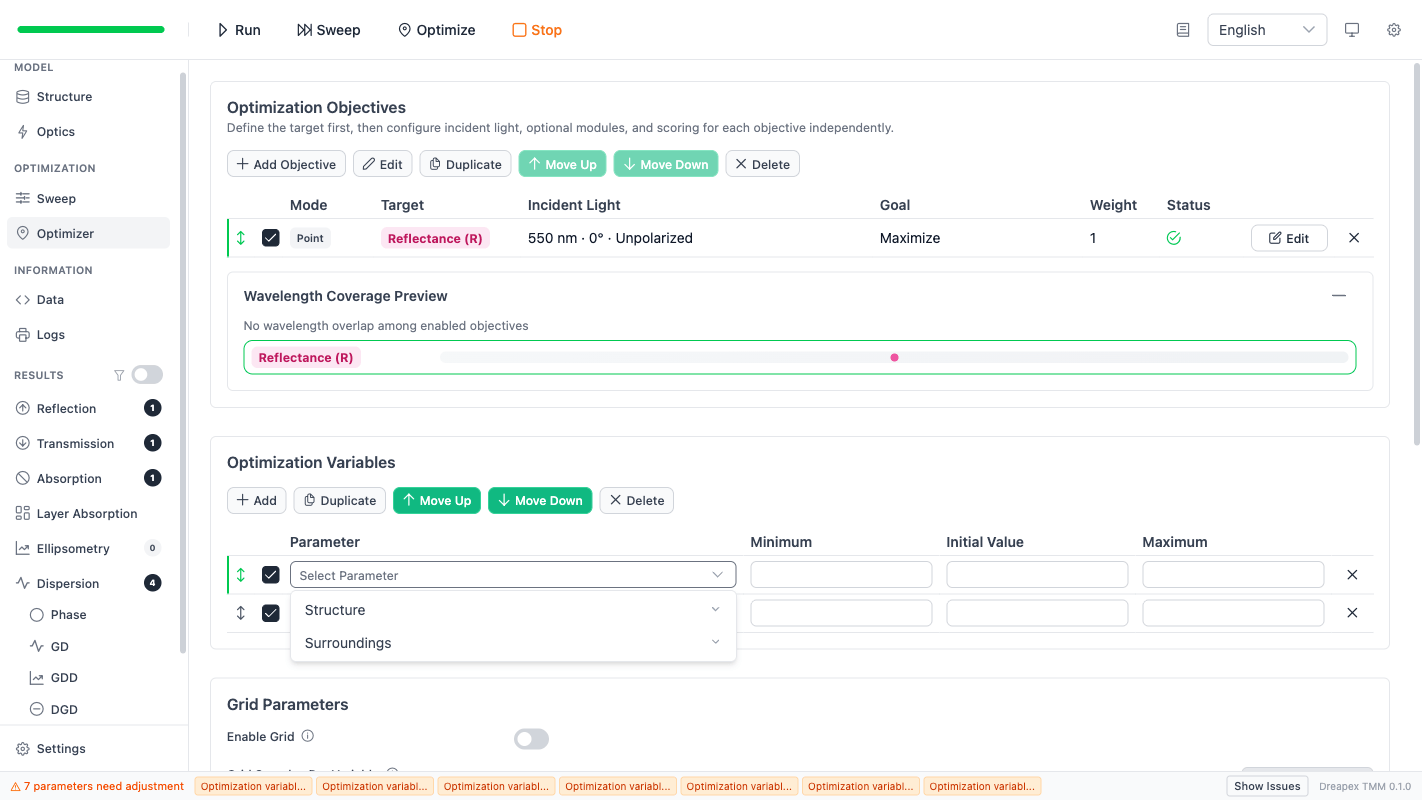
The path picker uses a cascading menu that only shows currently enabled elements in the structure:
| Category | Path format | Current restriction |
|---|---|---|
| Regular layer thickness | structure / {LayerName} / thickness | Most common |
| Layer refractive index | structure / {LayerName} / {n, k, nExt, kExt} | Limited by indexType |
| Layer Group internal layer | structure / {GroupName} / Layers / {LayerName} / ... | Group must be enabled |
| Incidence medium | surroundings / incidence / n | Only n is supported |
| Transmission medium | surroundings / transmission / {n, k} | Not available in File mode |
indexType and Optimizable Properties
The refractive index mode determines which properties can be used as optimization variables:
indexType | Allowed properties | Blocked properties |
|---|---|---|
Constant | thickness, n, k | nExt, kExt |
Const. Birefringence | thickness, n, k, nExt, kExt | -- |
File | thickness | All refractive-index properties |
Initial Value and Grid Interaction
- When grid search is off:
Initial Valueserves as the starting point for the local solver and must be within the[Minimum, Maximum]range. - When grid search is on: The
Initial Valuecolumn is disabled; starting points are replaced by grid seeds.
Initial Value column is disabled. An info message appears above the table: grid mode replaces starting values with grid seeds.Validation Rules
| Rule | Description |
|---|---|
| At least one enabled variable | Otherwise the optimization task is invalid |
| Enabled variables must have a valid path | Empty paths cause immediate errors |
| No duplicate paths among enabled variables | Remember to change paths after duplication |
min and max cannot both be empty | At least one bound is required |
If both are present, min < max | Must be satisfied |
When Paths Become Invalid
| Scenario | Fix |
|---|---|
| A layer or group was deleted | Re-select the path |
| A layer or group was disabled | Re-enable it or choose another path |
| A layer or group was renamed | Re-select the path |
| The property no longer matches the current indexType | Change the mode or choose another property |
Multi-Variable Configuration Example
| Variable | Path | Min | Max | Purpose |
|---|---|---|---|---|
| ITO thickness | structure / ITO / thickness | 20 | 80 | Main design parameter |
| SiO2 thickness | structure / SiO2 / thickness | 50 | 200 | Spacer layer thickness |
| Substrate n | surroundings / transmission / n | 1.4 | 1.7 | Material selection range |
When using grid search with 2 variables and 5 samples per variable, this produces 5^2 = 25 grid points. Each grid seed then gets refined by the local solver.
Grid Parameters
Grid search is an optional pre-search stage. When enabled, the optimizer first performs a coarse grid scan across the entire variable space, selects the top seeds, and then runs local optimization from each seed independently.
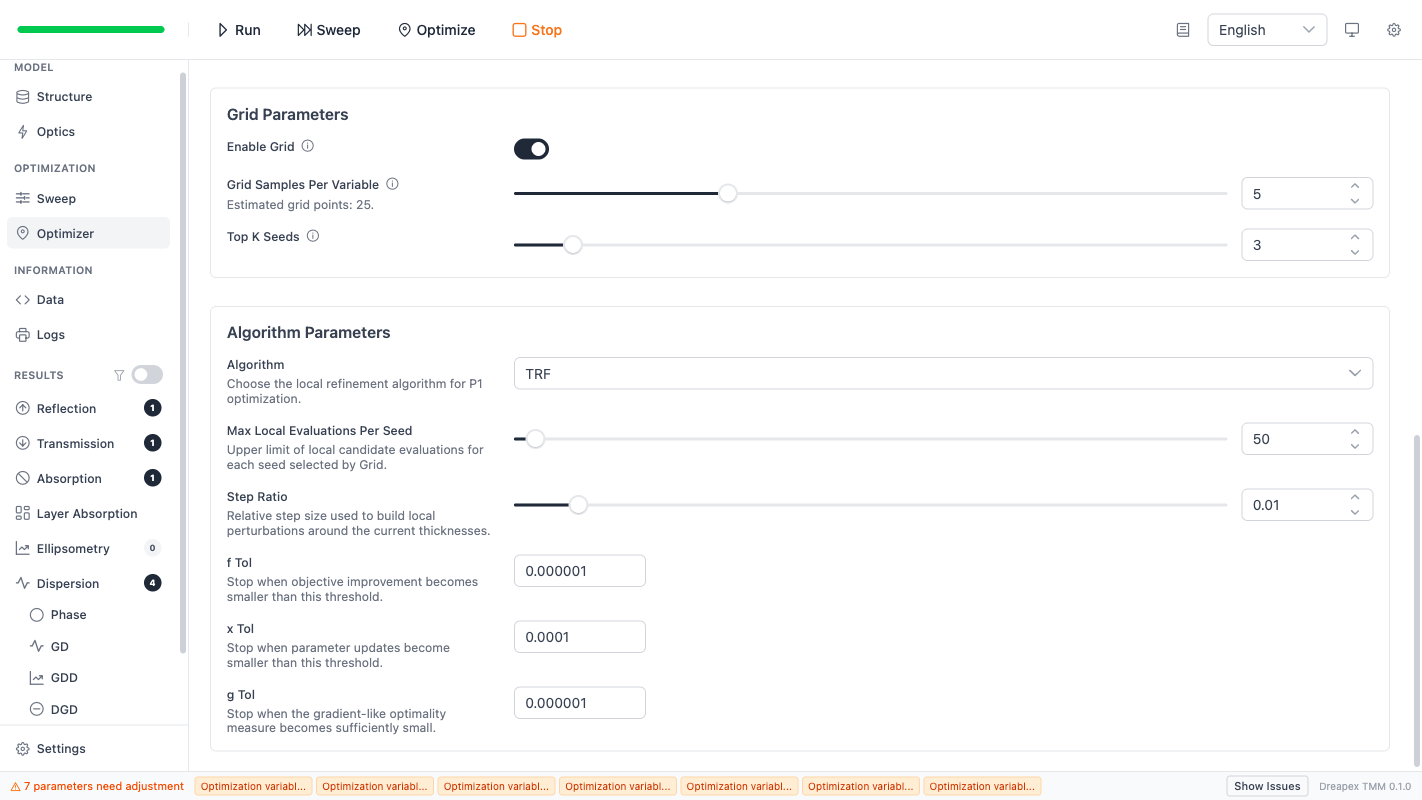
| Parameter | Range | Description |
|---|---|---|
Enable Grid | On / Off | Enable grid pre-search |
Grid Samples Per Variable | 2 to 25 (slider) | Sampling density per variable dimension |
Top K Seeds | 1 to total grid points | Number of best grid seeds that proceed to local refinement |
Behavioral Changes When Grid Is Enabled
| Behavior | Description |
|---|---|
Initial Value disabled | Starting values in the variables table are replaced by grid seeds |
| Label text changes | Max Evaluations becomes Max Local Evaluations Per Seed |
| Estimated grid points | Displays formula: Estimated grid points = (Samples Per Variable)^(number of enabled variables) |
Algorithm Parameters
Algorithm Selection
| Algorithm | Type | Suitable for |
|---|---|---|
TRF | Trust-region least-squares | Multi-objective, curve fitting; the default choice |
L-BFGS-B | Quasi-Newton with bound constraints | Smooth gradient landscapes, many variables |
Nelder-Mead | Derivative-free simplex | Non-smooth objective landscapes or when gradient information is not needed |
Common Parameters
| Parameter | Range | Description |
|---|---|---|
Max Evaluations | 20 to 1000 | Total evaluation budget (per-seed local budget when grid is enabled) |
TRF Parameters
| Parameter | Range | Default | Description |
|---|---|---|---|
Step Ratio | 0.001 to 0.1 | 0.01 | Relative step size for building local perturbations |
f Tol | > 0 | 1e-6 | Objective improvement threshold |
x Tol | > 0 | 1e-4 | Parameter update threshold |
g Tol | > 0 | 1e-6 | Gradient optimality threshold |
L-BFGS-B Parameters
| Parameter | Range | Default | Description |
|---|---|---|---|
Step Ratio | 0.001 to 0.1 | 0.01 | Relative step size for building local perturbations |
f Tol | > 0 | 1e-8 | Objective improvement threshold |
g Tol | > 0 | 1e-5 | Gradient optimality threshold |
Nelder-Mead Parameters
| Parameter | Range | Default | Description |
|---|---|---|---|
Initial Simplex Ratio | 0.01 to 0.2 | 0.05 | Relative initial simplex size |
x Atol | > 0 | 1e-3 | Absolute parameter convergence tolerance |
f Atol | > 0 | 1e-6 | Absolute objective convergence tolerance |
Practical Tuning Guidance
Max Evaluations = 50 to 150) and confirm the direction is correct before increasing. If using grid search, start with Samples Per Variable = 3 to 5 and Top K Seeds = 2 to 3.| Scenario | Recommended configuration |
|---|---|
| Initial trial run | TRF, Max Evaluations = 100, Grid disabled |
| Coarse scan + refinement | Enable Grid, Samples = 3-5, Top K = 2-3, TRF |
| Many variables (> 4) | L-BFGS-B, reduce Grid sampling density |
| Non-smooth objective landscape | Nelder-Mead, increase Max Evaluations accordingly |
Pre-Run Validation and Common Errors
Checklist before executing Run Optimizer:
- At least one enabled and valid objective exists.
- At least one enabled and valid variable exists.
- No duplicate paths among enabled variables.
StructureandOpticspass validation.- Variable ranges are physically reasonable.
- Algorithm parameters are within the allowed ranges.
| Symptom | Common cause | Fix |
|---|---|---|
Run Optimizer stays disabled | Objectives, variables, or algorithm controls still contain errors | Check the footer, fix each item |
| A new variable immediately fails | Add created an enabled empty row | Fill the path and bounds, or disable it first |
| Hit Target mode remains invalid | Target Value is missing | Enter a value between 0 and 1 |
| Stay in Range mode remains invalid | Lower/Upper Bound missing or Upper < Lower | Fill both and ensure Upper >= Lower |
| Color target validation fails | Sweep range produces fewer than 2 sample points | Widen the wavelength range or reduce step |
| Curve Fit cannot be saved | Curve data was not applied | Click Apply Curve Data |
| Results are poor and unstable | Bounds too wide, targets conflict, or budget too small | Shrink bounds first, then review targets and budget |
After this page is configured, continue with the next chapter: Basic Optical Results. Read ordinary result interpretation first, then return later to Optimization Report for best-solution analysis.