Parameter Sweep
This guide explains how to use Sweep to vary layer thickness, incidence angle, polarization, or material parameters and compare their effects on simulation results. Afterward, you can create a runnable parameter sweep and identify trends and sensitive ranges in the results.
Page Role and Use Cases
Before opening Sweep, the following prerequisites should usually already be satisfied:
Structureis stable, and layer/group names are no longer changing frequently.Opticsalready contains at least one valid single-run configuration.- You have executed a normal
Runonce and confirmed that the baseline result is physically reasonable.
From an engineering standpoint, Sweep is mainly used for the following questions:
| Question type | Typical parameter | Purpose |
|---|---|---|
| Angle sensitivity | incidentAngle | Evaluate how reflection, transmission, or ellipsometry changes with angle |
| Polarization sensitivity | pRatio | Evaluate trend changes under different polarization states |
| Thickness tolerance | thickness | Estimate tolerance to film-thickness deviation |
| Periodic structure scale | repeatCount | Evaluate how the number of repeated periods changes the response |
| Material-parameter perturbation | n / k / nExt / kExt | Study how index-parameter variation affects the design point |
If the structure is still being renamed, reordered, or heavily edited, do not start with Sweep. Path references will keep invalidating and maintenance cost rises quickly.
Page Structure and Workflow
The Sweep page has two main areas:
- The top toolbar, which creates, duplicates, reorders, and deletes sweep items.
- The sweep table, which defines the path and numeric range of each sweep item.
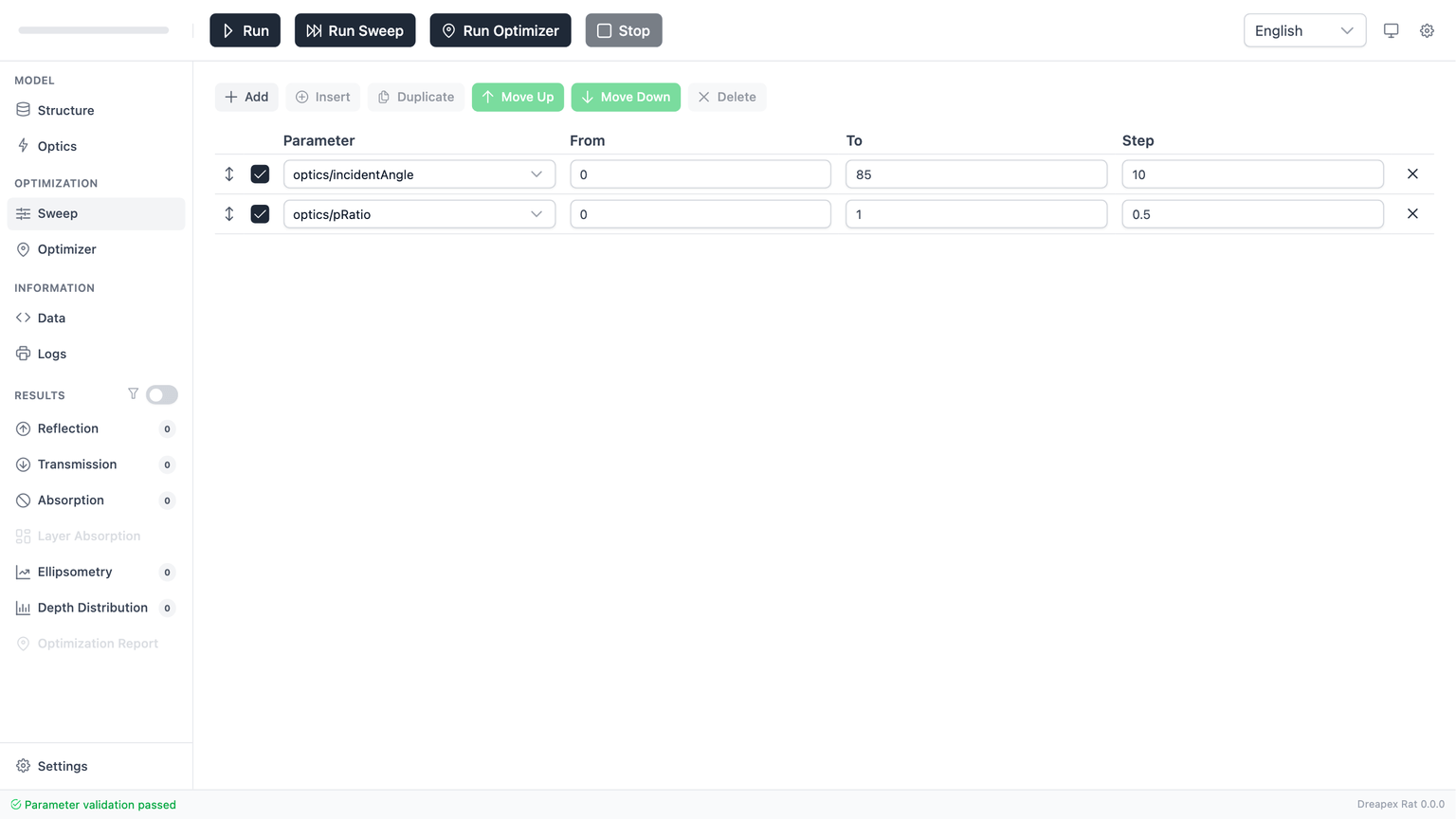
Use the following working order:
- Create the first sweep item.
- Select the path first, then fill
From / To / Step. - Complete one single-parameter sweep and validate the trend.
- Add a second parameter only after the first one is correct.
- Before running, check duplicate paths, invalid paths, and total combination count.
The purpose of this order is simple: validate the path model first, then increase calculation scale. Otherwise the same mistake is copied into multiple rows.
Toolbar Operations
The top toolbar contains Add / Insert / Duplicate / Move Up / Move Down / Delete, and all of them operate on the currently selected row.
| Action | Behavior | Use |
|---|---|---|
Add | Append a new sweep item at the end | Add a new independent parameter |
Insert | Insert a new item after the selected row | Add a parameter in the middle of the list |
Duplicate | Copy the current row | Reuse a similar configuration and modify it |
Move Up / Move Down | Change row order | Improves organization only |
| Drag handle | Drag to reorder | Equivalent to moving rows |
Delete / inline delete | Remove the row | Remove invalid or duplicated items |
Duplicate is the easiest way to introduce an error: if both copied rows remain enabled and still point to the same path, validation immediately fails with a duplicate-path error.
Sweep Table Fields
The core fields in the sweep table are:
| Field | Purpose | Current rule |
|---|---|---|
| Enabled | Whether the row participates in the current sweep | Only enabled rows participate in path and range validation |
Parameter | Sweep path | Must be selected from the cascade picker |
From | Starting value | Required |
To | Ending value | Required, and must be greater than From |
Step | Increment size | Required, and must be greater than 0 |
| Inline delete | Remove the row | Same effect as toolbar delete |
One important implementation detail is that disabled rows are ignored by duplicate-path checks and ignored by range checks. This allows you to keep draft rows in the table without blocking the current run.
Parameter Path Model
Parameter uses a cascade path picker. Available paths are generated from the current model state, not entered as free text, so they change with Structure, Surroundings, and Optics.
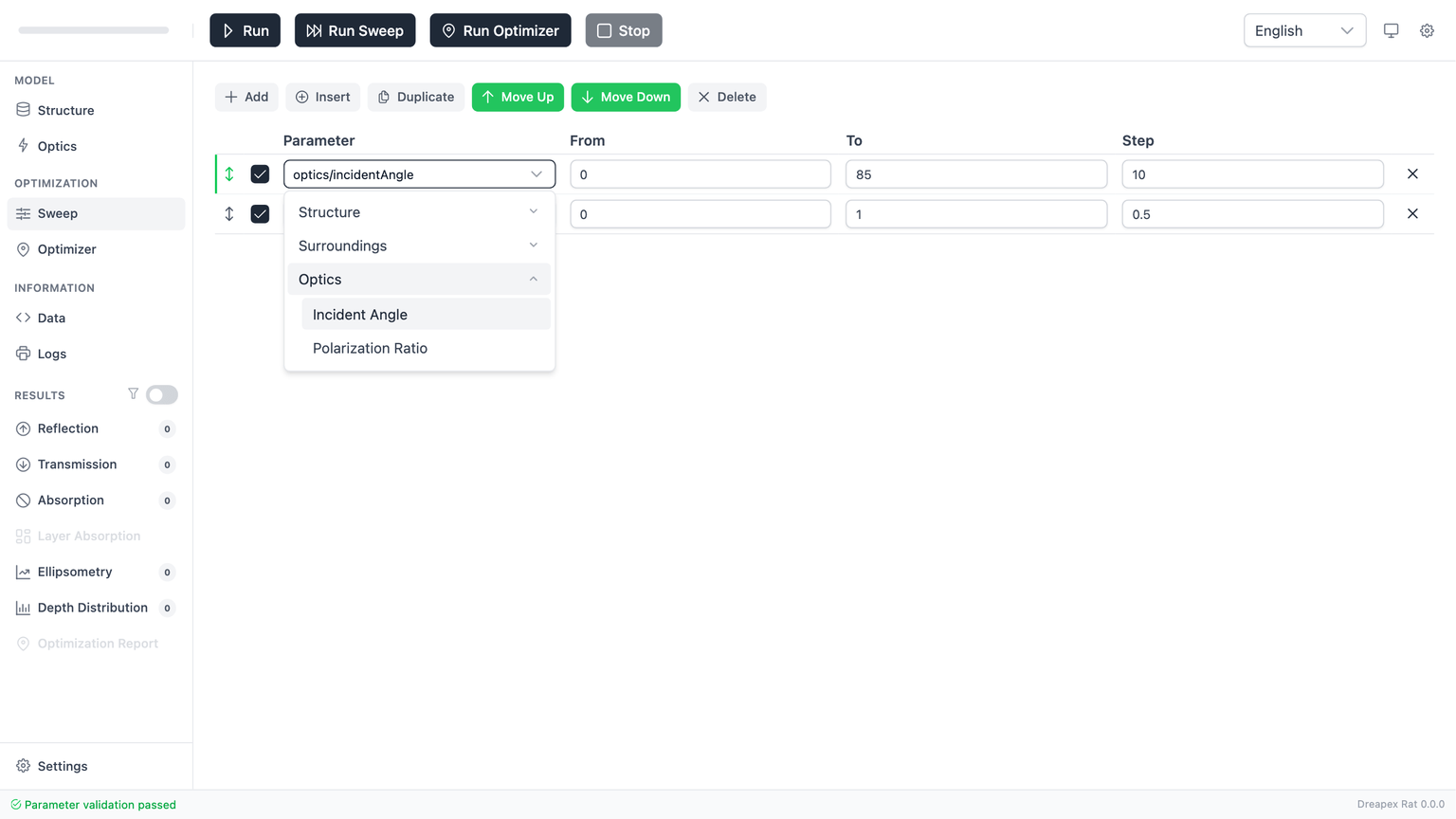
The current picker is divided into three groups:
StructureSurroundingsOptics
Structure Paths
Structure is the most common source of sweep variables. It is generated from the names of the current top-level structure elements.
| Path type | Path format | Use |
|---|---|---|
| Regular layer thickness | structure > {LayerName} > thickness | Thickness tolerance and thickness scans |
| Regular layer index parameters | structure > {LayerName} > n|k|nExt|kExt | Sweep material parameters |
| Layer Group repeat count | structure > {GroupName} > repeatCount | Sweep period count |
| Internal Layer Group properties | structure > {GroupName} > Layers > {LayerName} > ... | Sweep a specific internal layer |
For internal group layers, the stored value path is written as ['structure', groupName, 'layers', layerName, property]. If the internal layer name changes, the old path will not auto-update; it must be selected again.
Surroundings Paths
Surrounding-medium paths are split into the incidence side and the transmission side:
| Path | Supported properties | Meaning |
|---|---|---|
surroundings > incidence > n | n | The incidence side only allows the real part |
surroundings > transmission > n | n | The transmission side allows the real part |
surroundings > transmission > k | k | The transmission side allows the imaginary part |
The incidence side does not support k. If the medium currently uses File mode, the corresponding refractive-index property is rejected immediately.
Optics Paths
The current Sweep page exposes only two optics paths:
optics > incidentAngleoptics > pRatio
The current UI does not support direct sweeping of:
wavelengthFrom / wavelengthTo / step- detector enable switches
- incident-spectrum source
- visible-color enable state
In implementation terms, this page intentionally restricts sweep variables to structure parameters plus two core continuous optics variables. That is the current product boundary, not a missing menu item.
Validation Logic and Common Failure Modes
A path appearing in the picker does not guarantee that it is finally valid. The system still performs property-level validation, numeric-range validation, and reference-validity checks.
Property-Level Restrictions
If the path targets refractive-index-related properties, validity also depends on the current mode of the corresponding layer or medium.
indexType restrictions for layers and internal group layers
indexType | Allowed properties | Blocked properties |
|---|---|---|
Constant | n, k, thickness | nExt, kExt |
Const. Birefringence | n, k, nExt, kExt, thickness | No additional refractive-index restriction |
File | thickness | All refractive-index properties |
Therefore, when a layer is switched to File, n / k / nExt / kExt become invalid even if the path structure itself exists.
Surrounding-medium mode restrictions
Surrounding media follow the same rule set:
| Medium location | Mode | Result |
|---|---|---|
incidence | Constant | n may be swept |
incidence | File | Refractive-index sweep is blocked |
transmission | Constant | n / k may be swept |
transmission | File | Refractive-index sweep is blocked |
Numeric Range Rules
Every enabled sweep item must satisfy the following baseline rules:
From,To, andStepare all filled.From < To.Step > 0.
Several common mistakes:
From = Tois invalid. If only one fixed value is needed, use a normal single calculation instead.- Negative step is invalid. The current sweep logic always assumes forward progression.
- Extremely small step may still pass validation, but it can increase point count and runtime sharply.
Special Rules for repeatCount
repeatCount is discrete and must remain a positive integer, not a general real-valued parameter. Therefore, when sweeping group repeat count:
Frommust be a positive integer.Tomust be a positive integer.Stepmust be a positive integer.- The generated sequence must also remain a positive-integer sequence.
For example, 1 -> 5, step 0.5 increments mathematically, but it is still invalid in this context.
Typical Causes of Path Invalidation
Most Sweep failures come from model-state changes rather than the numbers themselves.
| Symptom | Cause | Fix |
|---|---|---|
| A previously valid path fails today | The referenced layer/group was deleted | Re-select the path |
| A visible path becomes invalid | The referenced element was disabled | Re-enable it in Structure or choose another path |
| The path breaks after renaming | Paths are stored by name | Re-select the path; old names do not auto-update |
| Duplicate-path error after copying | Two enabled rows point to the same path | Change one path, or temporarily disable the draft row |
Multi-Parameter Sweep and Baseline Usage
When two or more sweep items are enabled, the system does not execute them independently. It builds combinations from each row’s value list.
For example:
incidentAngle: 0 -> 60, step 20gives 4 values.pRatio: 0 -> 1, step 0.5gives 3 values.
The final run count is 4 × 3 = 12, not 4 + 3 = 7.
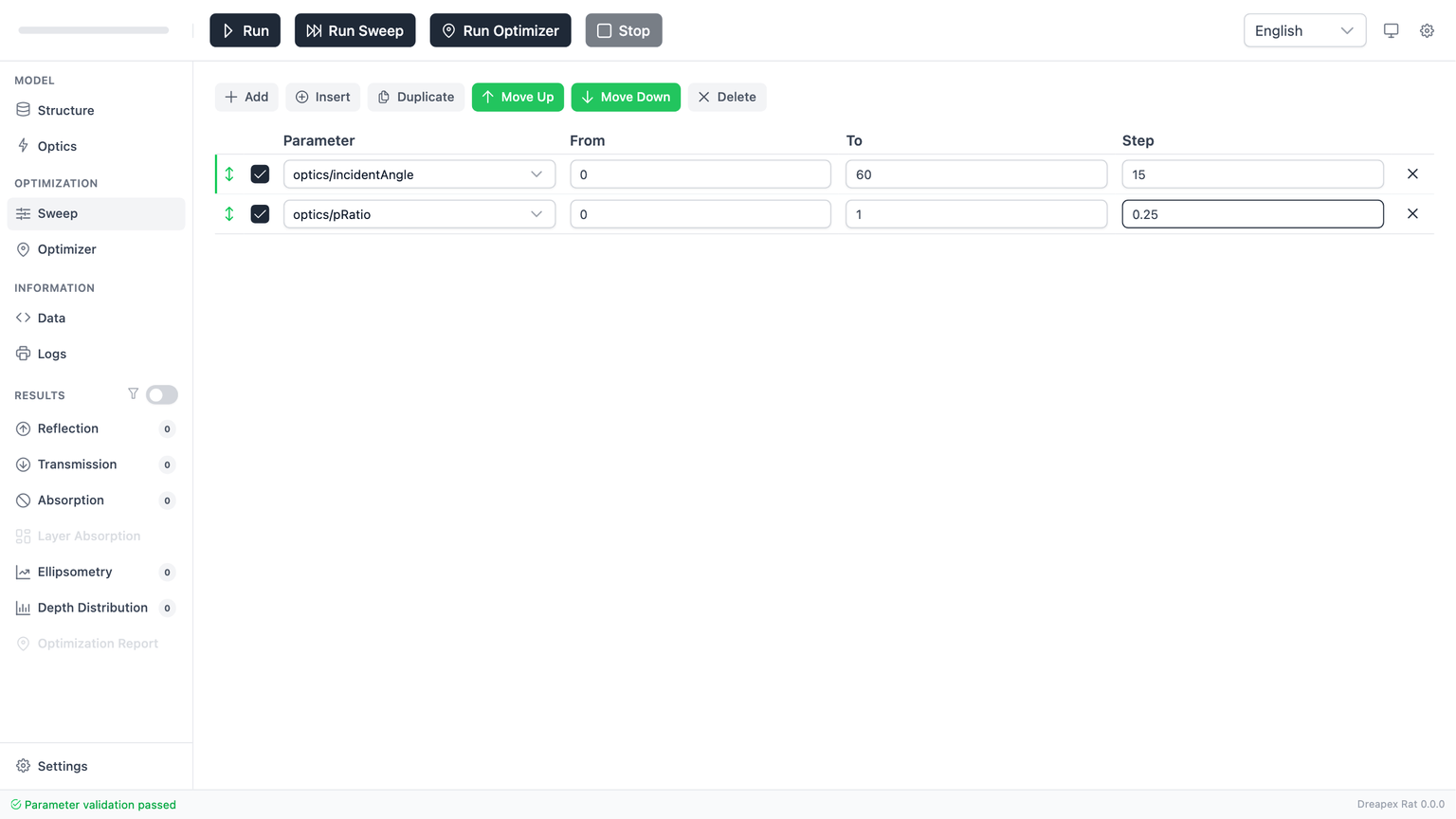
The key engineering question in multi-parameter sweep is whether the total combination count is acceptable. Estimate the total combinations before adding the second parameter.
Single-parameter baseline case
The safest first sweep case is:
- Add one sweep item.
- Choose
optics > incidentAngle. - Set
From = 0. - Set
To = 80. - Set
Step = 10. - Keep the row enabled.
- Launch the run using the global top-toolbar
Run Sweep.
This is one of the easiest sweep types to interpret and the least dependent on structure details.
Two-parameter baseline case
If you want to extend to a two-parameter sweep, the preferred pair is:
- First row:
optics > incidentAngle - Second row:
optics > pRatio
This pair is stable because:
- Neither path depends on layer names.
- Both are continuous variables.
- Neither is restricted by
Filerefractive-index mode.
By contrast, directly sweeping a layer n / k or internal layer parameters is much more sensitive to indexType and naming changes.
Data-point limits
| View type | Data-point limit |
|---|---|
| 2D charts (Line / Heatmap) | 500 000 |
| Table | 500 000 |
| 3D Scatter | 80 000 |
| CIE chromaticity diagram | 2 000 |
Pre-Run Checklist and Next Step
Before executing Run Sweep, verify the following:
- Every enabled sweep item has a valid path.
- No two enabled rows use the same path.
- Every enabled row satisfies
From < ToandStep > 0. - If the path is
repeatCount, all three values are positive integers. - If you are sweeping refractive-index properties, the target is not currently in
Filemode. - You have estimated the total combination count and confirmed that the run size is acceptable.
After this, continue with the next chapter: Optimizer.